Editing a Key Map
The Key Mapping Editor lists all of the 3D Network Visualizer functions that you can control from the keyboard.
Procedure 216: Editing a Key Map
- Choose Settings > Application. The Application Settings dialog box opens.
- Select the Key Mapping Editor page. (Figure 237).
- Select the function whose key mappings you want to edit.
- Edit the key mappings. as described in:
- Optionally, export the key map to a file.
- Click OK.
Adding a Key Mapping
If a function is not mapped to a key, it is marked <unmapped>. You can add a mapping to unmapped functions and you can add additional key mappings to functions that are already mapped. If you add a key mapping to a binary function, the Key Mapping Editor automatically applies it to the child (UP and DN) functions. You can add key mappings to the child functions of binary mappings. When you add a key mapping to a child function, it is not applied to its paired function or the parent function.
Note: In most cases, an unmapped function is unmapped because it is not meaningful in the observer frame for the key mapping. For example, the level observer movement functions are not meaningful in the observer frame key mappings.
Procedure 217: Adding a Key Mapping
-
Optionally, filter the function list. For details, please see Filtering the Function List.
-
Select the function to which you want to add a key mapping.
-
Click the Add icon (
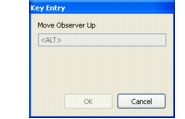
 ) above the Key Map window (Figure 238). The Key Entry dialog box opens (Figure 239).
Figure 238: Key Mapping Editor
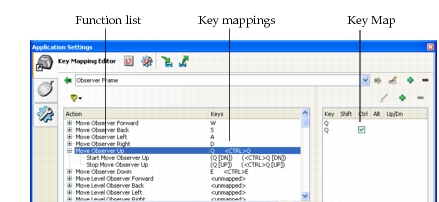
Figure 239: Key Entry dialog box
-
On the keyboard, press the key or key combination (such as
Ctrl+key orShift+key) that you want to map to this function. -
Click OK. (If you choose a key combination that is already in use, 3D Network Visualizer notifies you and asks how to proceed. For details about duplicate key mappings, please see Using Combined Key Mappings.) The mapping is added to the function and is listed in the Keys column of the function list and in the Key Map window.
Changing a Key Mapping
If a key mapping is assigned to a binary function, the key is automatically assigned to the child functions. You cannot edit the key mappings for the child functions. You can only change the parent’s key mapping. However, if you add a key mapping to a child function, you can edit it.
Procedure 218: Changing a Key Mapping
-
Select the function whose key mapping you want to change. Its key mappings get listed in the Key Map window (Figure 238).
-
In the Key Map window, select the key mapping that you want to change.
-
Click the Edit Key Mapping icon (
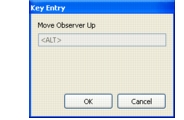
 ). The Key Entry dialog box opens (Figure 240). It shows the current key mapping.
Figure 240: Key Entry dialog box
-
On the keyboard, press the key or key combination (such as
Ctrl+key orShift+key) that you want to map to this function. -
Click OK. The mapping is changed.
Deleting a Key Mapping
Procedure 219: Deleting a Key Mapping
- Select the function whose key mapping you want to delete. Its key mappings get listed in the Key Map window (Figure 238).
- In the Key Map window, select the key mapping that you want to delete.
- Click the Delete icon (
 ) above the Key Map window. The mapping is deleted. The function list is updated.