Exaggerating the Terrain Scale
In XR mode, you can exaggerate the terrain scale to improve your sense of line-of-sight issues and other terrain factors that can affect an exercise. Figure 99 and Figure 100 illustrate terrain from the same observer location with and without terrain scaling. Notice how much easier it is to understand the relationship of the aircraft to the ground in the scaled view.
Figure 99: No terrain scaling
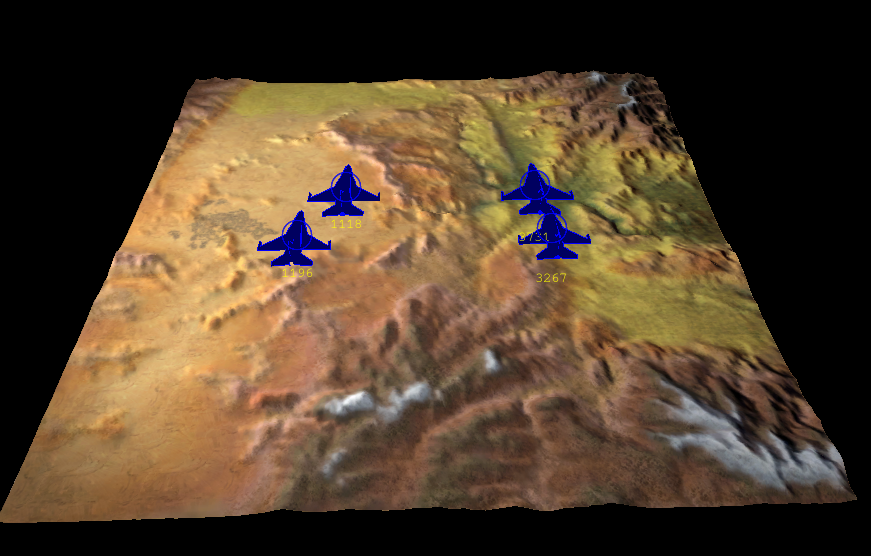
Figure 100: Terrain scaling
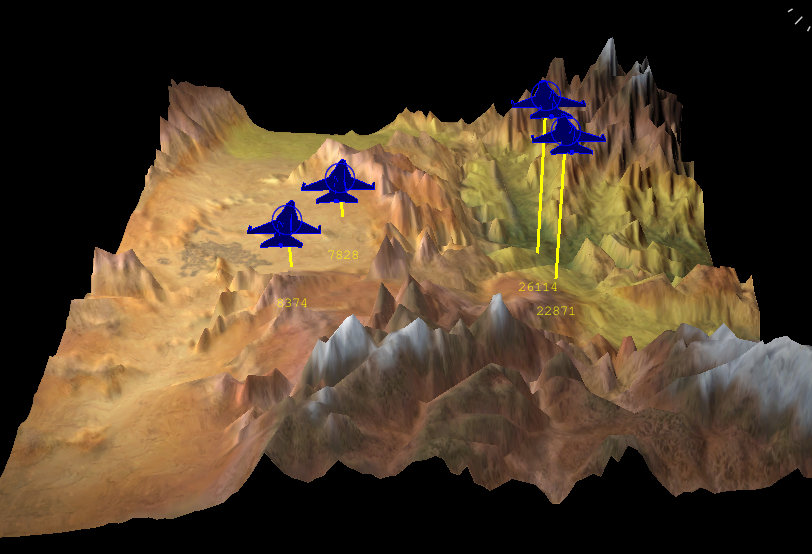
When you scale the terrain, terrain, props, and SpeedTrees all get scaled. Entities and entity labels get positioned so that they are in the correct position relative to the scaled terrain. However, the text on entity labels and other information panels displays their correct, unscaled location.
When you enable or disable terrain scaling or change the scale factor, track histories get cleared. You can specify that track histories not be cleared when you scale the terrain.
Note: Terrain scaling is not supported on geocentric terrains.
Enabling Terrain Scaling
To enable or disable terrain scaling, choose Settings > Terrain Scaling, or click the Terrain Scaling icon ( ) on the Display Settings toolbar.
Note: You can also enable and disable terrain scaling on the Display Settings dialog box, Render Settings page.
Scaling the Terrain
Procedure 110: Scaling the terrain
-
Enable terrain scaling. (Choose Settings > Terrain Scaling, or click the Terrain Scaling icon (
) on the Display Settings toolbar.) -
Click the arrow next to the Terrain Scaling icon. The Terrain Scale Factor slider is displayed (Figure 101).
Figure 101: Terrain Scale Factor slider

-
Adjust the slider.
Note: You can also scale the terrain on the Display Settings dialog box, Render Settings page.
Track Histories and Terrain Scaling
By default, when you enable or disable terrain scaling or change the scale factor, track histories get cleared and restarted. This is because track histories are not scaled and they would probably misrepresent the entity's track after the terrain was scaled. However, you can specify that track histories not be cleared when you scale the terrain.
Procedure 111: Specifying whether or not track histories are cleared when the terrain is scaled
- Choose Settings > Display. The Display Settings dialog box opens.
- Select the Render Settings page (Figure 7 "Render Settings page" on page 176).
- Select or clear the Clear Track Histories when Terrain Scale Changes check box.