Exaggerating the Scale of 3D Entity Models
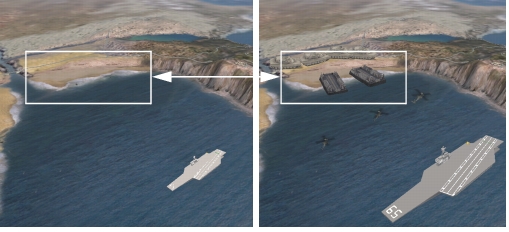
If you view the terrain in Stealth observer mode, beyond a certain distance most 3D entity models are too small to see. Model scaling lets you exaggerate the scale of entity models to see them at a great distance. Figure 94 shows the same scene with model scaling off and on. When model scaling is off, only the largest entities are visible. When models are scaled, they are all visible.
Note: The visual effect of model scaling depends on the observer's distance from an entity. When the observer is close to an entity, scaling models may not make any noticeable difference in its size.
Figure 94: Model scaling off and on
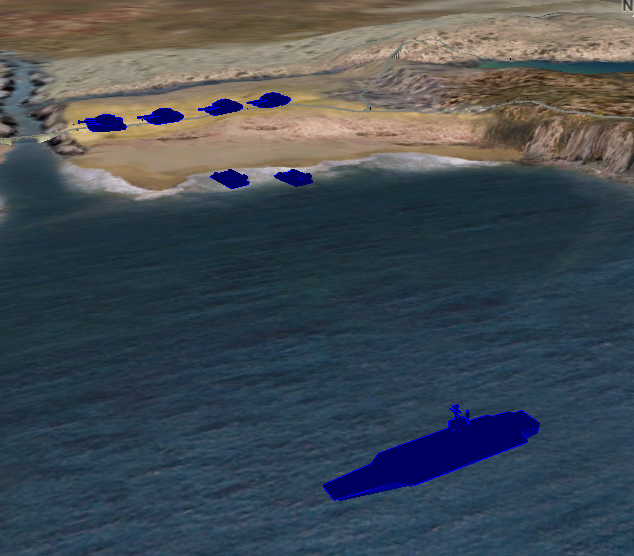
Another way to quickly change the visibility of entities is to switch to XR observer mode. In XR mode, entities are immediately scaled and are represented by colorized 3D models to enhance their visibility.
Figure 95: XR mode
Procedure 107: Scaling entity models
-
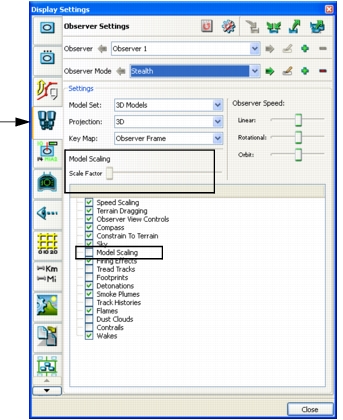
Choose Observer > Advanced Settings. The Display Settings dialog box opens to the Observer Settings page (Figure 96).
Figure 96: Observer Settings page
-
In the list of observer attributes, select Model Scaling.
-
Adjust the Scale Factor slider to the amount of scaling that you want.
You can also scale models from the Observer Settings Toolbar and the Observer Control Panel.
Procedure 108: Scaling models from the Observer Settings Toolbar
-
If model scaling is not enabled, click the Model Scaling icon (
 ) on the Observer Settings Toolbar.
-
Click the down arrow on the icon. The Scale Factor slider is displayed (Figure 97).
Figure 97: Scale Factor slider

-
Adjust the slider to scale the models.
Note: The Scale Factor slider is a dockable widget that you can undock and leave visible as long as model scaling is enabled.
Procedure 109: Scaling models from the Observer Control Panel
-
If model scaling is not enabled, enable model scaling in the Observer Settings page or click the Model Scaling icon (
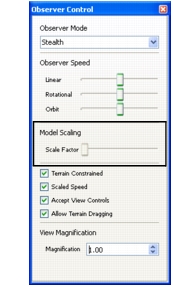
) on the Observer Settings Toolbar. The scale on the Observer Control Panel becomes enabled (Figure 98).Figure 98: Observer Control Panel
-
Adjust the slider to scale the models.