Intervisibility Objects can be Transient or Permanent
You can configure intervisibility objects to be transient or permanent. (For details, please see Configuring Intervisibility Lines and Fans.) A transient intervisibility object displays intervisibility from the origin point (defined by a mouse click) to wherever you move the cursor. If you click the mouse again, you reset the origin. You cannot use the mouse for other actions until you exit intervisibility mode (by right-clicking). This mode is convenient when you want to quickly check intervisibility, but do not want to keep intervisibility objects in the display.
A permanent intervisibility object stays in the display after you create it. You can resize the object, edit drawing options, and move it around the display.
Creating a Transient Intervisibility Object
Transient intervisibility objects do not stay in the display after you quit intervisibility mode.
Procedure 94: Displaying Transient Intervisibility
-
Choose Settings > Display. The Display Settings dialog box opens.
-
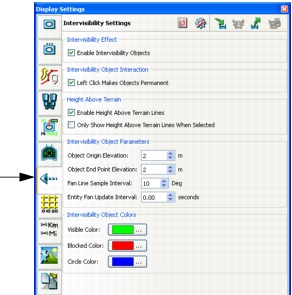
Select the Intervisibility Settings page (Figure 84).
Figure 84: Intervisibility Settings page
-
Clear the Left Click Makes Objects Permanent checkbox.
-
Select Enable Intervisibility Objects, or click the Enable Intervisibility icon (
 ) on the Intervisibility Toolbar.
-
Choose Intervisibility > Create
intervisibility_type, whereintervisibility_typeis a type of intervisibility object, or click one of the icons on the Intervisibility Toolbar. -
Click on the terrain to place the origin of the intervisibility object.
-
Move the cursor around the terrain to expand and contract the object. For point-to-point intervisibility, moving the cursor also changes the direction of the line.
-
To change the origin of the intervisibility display, click another location on the terrain.
-
Right-click to cancel intervisibility mode.
Creating a Permanent Intervisibility Object
Permanent intervisibility objects remain in the display after you create them.
Procedure 95: Creating a Permanent Intervisibility Object
- Choose Settings > Display. The Display Settings dialog box opens.
- Select the Intervisibility Settings page (Figure 84).
- Select Enable Intervisibility Objects.
- Select the Left Click Makes Objects Permanent checkbox.
- Select Enable Intervisibility Objects, or click the Enable Intervisibility icon () on the Intervisibility Toolbar.
- Choose Intervisibility > Create
intervisibility_type, whereintervisibility_typeis a type of intervisibility object, or click one of the icons on the Intervisibility Toolbar. - Click on an entity or on a location on the terrain where you want the origin of the intervisibility object to be located. An intervisibility object is displayed. As you move the cursor closer to the origin, or farther away from it, the circle or line contracts and expands. If you are displaying point-to-point, you can rotate the line around the origin before you specify the end point.
- Click on the terrain where you want to fix the end point of a line or border of a circle.