Adding an Observer
You can easily add and remove observers. Having multiple observers lets you assign different observers to different windows or channels. Changing the position and orientation of the observer in one channel does not affect the view of a different observer in a different channel.
Note: If you have multiple observers, the observer listed in the Observer Settings Toolbar is the observer assigned to the window that has focus. If you open the Display Engine Configuration Editor Panel and select a different observer in the Channel Attributes list, the data in relevant panels will change to reflect the values for the selected observer. However, as soon as you return focus to a window, the observer selection will change to match that of the window.
You can add observers in the Display Engine Configuration Editor Panel or on the Observer Settings page.
If you want to save your observers, save the display engine configuration in which you created them. (Saving an observer just saves its name. It does not save any information about a particular observer mode or location that you may have used for that observer. To save location information, save an observer view.)
Adding an Observer on the Observer Settings Page
Procedure 42: Adding an Observer on the Observer Settings Page
-
Choose Settings > Display.
The Display Settings dialog box opens.
-
Select the Observer Settings page (Figure 31).
-
Click the Add icon (
 ) to the right of the Observer drop-down list.
The Create New Observer dialog box opens.
-
Type a name for the new observer.
-
Click OK.
The new observer is added to the list.
-
To save the observer, save the display configuration. (Saving the Observer Settings does not save observers.)
Adding an Observer in the Display Engine Configuration Editor Panel
Procedure 43: Adding an Observer in the Display Engine Configuration Editor Panel
-
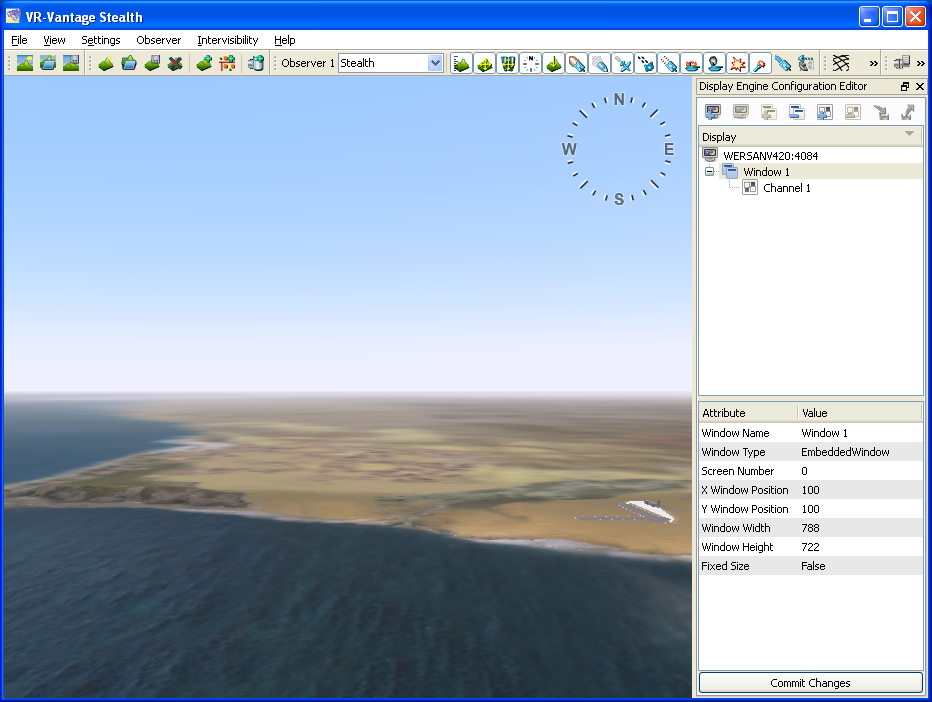
Choose View > Display Engine Configuration Editor Panel.
The Display Engine Configuration Editor Panel opens (Figure 33).
Figure 33: Display Engine Configuration Editor Panel
-
Select the channel on which you want to add an observer.
-
Click the Value field for the Observer Name attribute to make it editable.
-
In the drop-down list, select New.
-
Click Commit Changes.
The Add Observer dialog box opens.
-
Type a name for the new observer.
-
Click OK.
The new observer becomes the selected observer on the Observer Settings Toolbar, and is listed in the Observer Name attribute. (You may need to refresh the channel attributes before the observer name is listed.)
-
To save the observer, save the display configuration.