Communicating Information About the Observer
3D Network Visualizer can transmit state updates describing the observer’s position and orientation, and can respond to view control messages sent by other applications.
Making the Observer Visible to Other Applications
By default, 3D Network Visualizer sends state update messages to make its state information known to other applications. This makes it possible for a plan view display to represent 3D Network Visualizer as an icon, or for one 3D Network Visualizer application to synchronize its observer movement with that of another 3D Network Visualizer application.
Procedure 45: Enabling or Disabling the Broadcast of Observer Information
-
Choose Settings > Connection.
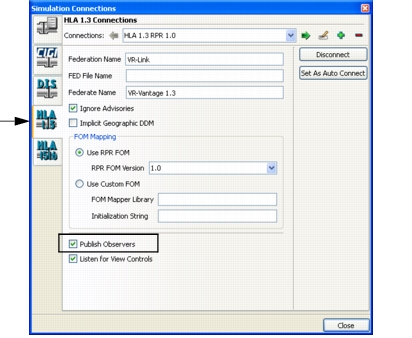
The Simulation Connections dialog box opens (Figure 34).
Figure 34: HLA 1.3 Connections page
-
Select the page for the connection that you want to configure.
-
Select or clear the Publish Observers checkbox.
-
Click Close.
Viewing and Attaching to Other Observers
If an exercise includes other stealth applications, and they are sending state updates, 3D Network Visualizer can detect them. A remote observer entity is listed in the object hierarchy, so you can attach the local observer to it just as you would attach to any other entity.
Observer icons are not normally visible in the 3D Network Visualizer window, even when they appear in the entity list. If you want to display visual representations of remote observers, map a visual model to the observer’s entity enumeration.
For related information, please see “Displaying Models for Remote Observers“ on page 284.