ZigBee Reports
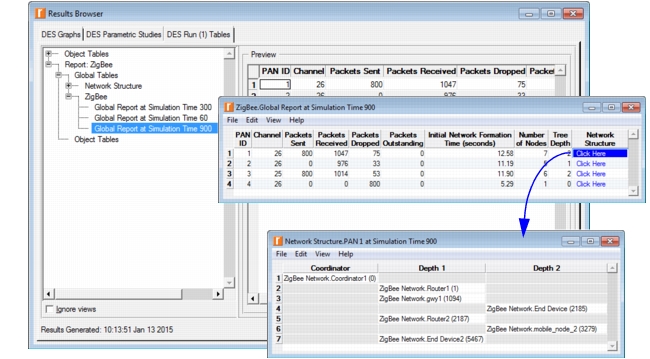
The ZigBee model suite includes a report that lets you view details about the ZigBee network. This report includes information such as the network formation time and the tree structure (if applicable).
This report is generated when you enable the ZigBee > Report Generation global attribute in the Configure/Run DES dialog box. The following procedure describes how to enable and configure these reports.
Procedure 124: Creating a Report for a ZigBee Network Model
-
Open the Configure/Run DES dialog box (choose DES > Configure/Run Discrete Event Simulation…).
-
Specify when the data for the report should be collected. By default, the report captures the network at 60 seconds of simulation time. To specify an alternate time:
2.1 In the treeview of the Configure/Run DES dialog box, expand Inputs and select Global Attributes.
2.2 In the Global Attributes pane, expand ZigBee to reveal the ZigBee report parameters.
2.3 In the Report Snapshot Time(s) attribute, specify when the report data should be collected. If you want to create multiple reports at different times, enter a list of times separated by commas (specifying “60, 180, 300” will generate reports at 60 seconds, 180 seconds, and 300 seconds).
-
Click Run to start the discrete event simulation.
Result: A report is created during the simulation. To view the report, select the DES Tables tab in the Results Browser.
Figure 682: ZigBee Reports in the Results Browser
End of Procedure 124