Troubleshooting Application Configuration
Debugging the Model
If you do not have traffic in the model or you do not have the traffic you expect, use these guidelines to assist you in debugging your model.
Application Deployment Dialog
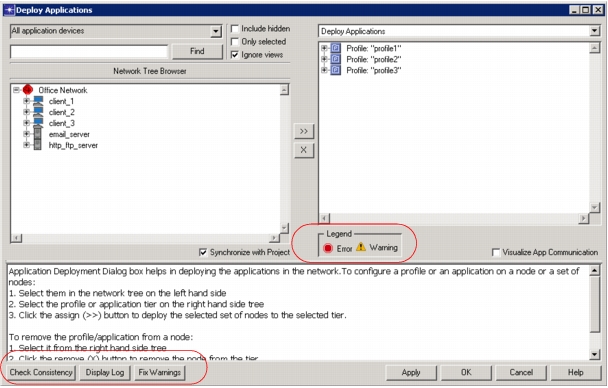
The Application Deployment Dialog (ADD) provides error and warning messages to alert you to errors in your application deployment. As described in Procedure 8, when you use the Check Consistency button, ADD will show error or warning symbols next to profiles or applications that have been incompletely or incorrectly deployed. You can also choose to Display Log or Fix Warnings—two more ways to discover or troubleshoot problems. If you ignore errors or warnings here, your simulation may not run correctly.
Figure 71: Application Deployment Dialog
DES Simulation Log
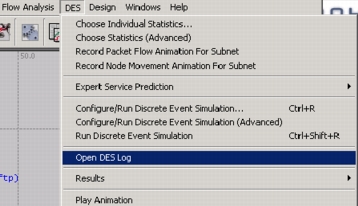
A valuable resource for troubleshooting is the DES simulation log. You can open this log from the DES menu, as shown. This log lists errors and warnings, which are timestamped, along with the node/object that caused the error. Using the messages in the log, you can narrow down the problems in your simulation. For more complex problems, this information is useful when calling technical support.
Figure 72: Opening the DES Simulation Log
Errors reported in the DES log display possible causes and solutions. Some of the errors you may find in the DES log include:
- Problems with Profile Repeatability—If you set the profile duration to “End of Simulation”, the profile will not repeat. The reason is that the profile does not end until the simulation ends, therefore it cannot repeat.
- Application in Serial Mode will not start—If an application is running in serial mode and the application before it is set with a duration of “End of Simulation”, the subsequent applications will not run.
- Profile does not run—If a profile is set on a client but is not defined, the profile will not run as expected. If a service is set on a client but is not defined on the server, the profile will not run as expected.
- Application Parameters not Defined—You will see an error if some of the application parameters are undefined along with a suggested solution.
Common Configuration Problems
Some problems that occur when trying to run the simulation are more difficult to pinpoint. Some of the configuration problems that commonly occur are
-
If the profile start time plus the application start time offset are less than the convergence time for the routing protocol, your traffic may not have a route to its destination.
Check to be sure that you take routing protocol convergence behavior into consideration when designing your simulations.
-
If the profile start time plus the application start time offset are longer than the duration of the simulation, you will get unexpected results.
This is a problem that often happens when using exponential distribution in profile start time or application start time offset.
-
If the application duration is longer than the simulation duration, the application will terminate at the end of the simulation.
Isolate the Problem
Some things you can do to isolate difficult problems include the following:
- Use constant distributions to make profile scheduling deterministic.
- Collect application Traffic Sent/Received statistics in “All Values” mode. This will let you examine the exact time data was sent, as well as size of traffic.
- Check to see if the problem is caused by a network issue. Create an application demand between your client and server. Check to see if you can obtain application demand response time statistics.
- If you are working with a large network, try scaling down to a smaller subset.
- Choose Scenarios > User-Defined Reports to produce a report that lets you visualize attribute settings.
- Choose Scenarios > Object/Attribute Difference Report to compare the scenario to another scenario that works correctly.
Frequently Asked Questions: Applications
Additional information is available in the Knowledge Base section of the Support website (support.riverbed.com).
Can I make the simple CPU model non-linear?
Yes, you can make the simple CPU model simulate non-linear contention. By default, the simple CPU model uses linear interpolation. To make it non-linear, use the compound attribute CPU > CPU Resource Parameters > Multi-Tasking Performance Table. Here is an example of how it works:
Suppose you set 2 rows in this table, as follows:
Table 16: Setting the CPU Multi-Tasking Performance Table
| Scenario | Number of Tasks | Performance Fraction | Interpolation Mode | Result |
|---|---|---|---|---|
| 1 | 5 | 1.0 | Linear | Up to 5 simultaneous tasks contending. CPU performance is unaffected. |
| 2 | 20¹ | 0.1 | Hold | Between 6 and 20 tasks contending. CPU performance degrades linearly from 100% to 10% with each additional task. |
Note 1: When more than 20 tasks are contending, CPU performance holds steady at 10%.
Does the FTP model support both data and control channels?
The standard FTP model included with Riverbed Modeler sends both data and command packets on a single channel.
How does segmentation and reassembly affect traffic in the application model?
At this time segmentation and reassembly (SAR) breaks down the application packet into segments, all at once, and passes them to TCP or UDP (depending on the application). Riverbed Modeler does not actively monitor the TCP send buffer to do any flow control at the application layer.
What is the difference between “Supported Services” and “Supported Profiles”?
Supported services are set on the server; supported profiles are set on the client. If you have a profile that supports FTP, Email, and HTTP, set the Supported Services on the server (i.e, FTP, Email, and HTTP), and set the Supported Profile on the client workstation.
What does it mean for a server to “support” an application?
If a server supports an application, the client workstation can send to and receive from the server this type of application traffic.
What happens if I do not set the Application: Destination Preferences attribute?
If the Destination Preferences attribute is not set, the destination is chosen randomly from all servers in the network model which support the given application. If there is no server which supports the service, the application will not start.
How do I know whether I should model my Email application using “Low Load”, “Medium Load,” or “High Load”?
The symbol maps for the Email application were selected based on a general understanding of low, medium, and high Email traffic loads. When you configure your application, however, you may not want to use the preconfigured application models but configure your own, based on the traffic generated by your own Email application.