Configuring Individual Applications for Application Modeling
To begin configuring an application, drag and drop an Application Config node object from the Applications Object Palette to the Project Editor.
Figure 19: Applications Config Node
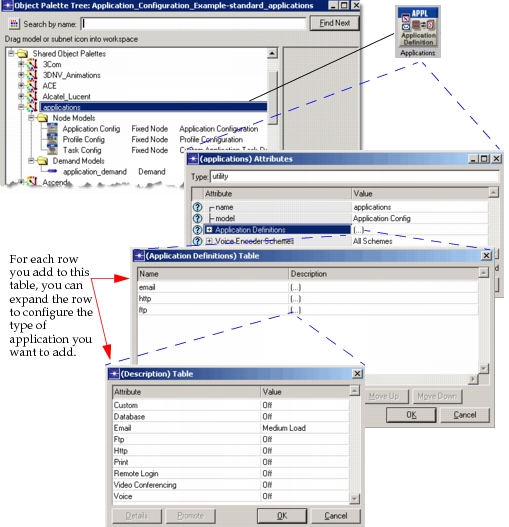
Right-click on the application config node object, and select Edit Attributes... to configure specific parameters. In the following section, the attributes for each type of standard application are described. You can configure these additional parameters for each selected application. These standard applications include
- FTP in Application Modeling
- Peer-to-Peer File Sharing in Application Modeling
- Email in Application Modeling
- Remote Login in Application Modeling
- Video Conferencing in Application Modeling
- Video Streaming in Application Modeling
- Database in Application Modeling
- HTTP in Application Modeling
- Mobile User Applications in Application Modeling
- Print in Application Modeling
- Voice in Application Modeling
Note: You can use measurements from your live network to determine the settings for your application model. Each application description that follows includes a section called, “Using Measurements for Configuration” to describe ways to use collected measurements.
FTP in Application Modeling
An FTP application enables file transfers between a client and a server. FTP has two basic commands for transferring a file: “get” and “put”. The “get” command triggers the transfer of a file from a remote server. The “put” command sends a file to a remote server.
Figure 20: FTP Application Message Exchange
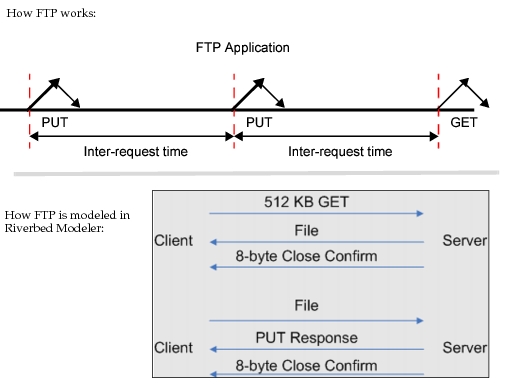
For each “put” or “get” file transfer, the FTP application model sends two messages: a control message and a data message. The control message represents a confirmation response for a “put” operation or the request for a “get” operation. The data message represents the file being transferred. You can configure the size of the data message, but the size of the control message is 512 bytes, by default. The effects of the control messages are more noticeable when you are modeling the transfer of small files, but have less impact on the results for large file transfers.
For connection-oriented transport protocols such as TCP, the model opens a new transport connection for each file transfer. The model does not include separate channels for data and control traffic—the data and control messages for a file transfer use the same TCP connection. TCP is the default transport protocol for this application.
Some of the important FTP attributes are listed in the following table.
Table 3: FTP Application Model Attributes
| Attribute | Description |
|---|---|
| Command Mix (get/total) | Ratio of “get” (download) commands to the total number of commands (sum of “gets” and “puts”). |
| Inter-Request Time (seconds) | Time between subsequent file requests. |
| File Size (bytes) | Size of a file being transferred. |
| Symbolic Server Name | Symbolic name of the file server to which the client connects. For more information, see Edit Destination Preferences. |
| Type of Service | Quality-of-service parameter used to assign a priority to the traffic generated by this application. |
| RSVP Parameters | RSVP parameters for making bandwidth reservations. |
| Back-End Custom Application | Points standard application to custom application, allowing complex modeling of web applications, web caching, email, etc. Note: You must configure the custom application before pointing a standard application to it in this manner. |
Model Limitations
The rate at which files are requested is independent of the responses received, that is, the second request can leave without the first response being received.
To represent a single user generating FTP application traffic, a single row of this attribute must be configured. If multiple rows are configured, each row represents an independent FTP session; that is, one of multiple users generating FTP application traffic simultaneously on the same machine.
Using Measurements for Configuration
To obtain the total number of FTP connections opened by a user, position a protocol analyzer on a segment shared by the client. For each FTP session, there is one control connection and one data connection. To obtain the number of file transfers, divide the total number of FTP-related connections by two.
The ratio of FTP “gets” to “puts” is judged from the direction of the data connections:
- An FTP “put” issued at the client results in a data connection from the client to the server.
- An FTP “get” issued at the client results in a data connection from the server to the client.
- The file transfer rate = (number of file transfers) / (length of traffic capture). The Inter-Request Time is the inverse of the file transfer rate.
- The average file size = (total number of bytes) / (number of file transfers).
Peer-to-Peer File Sharing in Application Modeling
Peer-to-peer (P2P) file sharing over a network eliminates the need for centralized servers, allowing all computers to communicate and share resources as equals. That is, peer-to-peer file sharing is a client-to-client protocol without the concept of a server. Music and video file sharing are examples of network applications that rely on peer-to-peer technology.
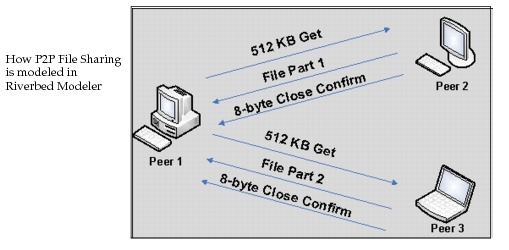
Figure 21: Peer-to-Peer File Sharing Message Exchange
Note: The Application_Configuration_Example project, included with Riverbed Modeler, contains a pre-configured scenario (“peer_to_peer_file_sharing”) that demonstrates a simple configuration to enhance your understanding of this application. Example projects can be found in the following directory: <reldir>\models\std\example_networks.
Some of the important peer-to-peer file sharing attributes are listed in the following table.
Table 4: Peer-to-Peer File Sharing Model Attributes
| Attribute | Description |
|---|---|
| Inter-Request Time (minutes) | Time between subsequent file requests. |
| Requested File Size (bytes) | Defines the size of the requested file. |
| File Popularity | Defines the popularity of the files (i.e., the number of peers that have the requested file). |
| Leecher Probability | Defines the probability that a node that runs the Peer-to-Peer File Sharing application will be a leecher. A leecher is a node that only downloads files from other peers and doesn't contribute any files to the peer-to-peer system. |
Peer-to-peer file sharing differs from HTTP and FTP downloads in that a peer may request a portion of a file (for example, a movie file) from multiple peers rather than just one. Simultaneous requests for portions of a file are supported.
To configure peer-to-peer file sharing, create an application definition in the Application Definition config node using the Peer-to-Peer File Sharing application, and then configure one or more profiles that include the application you defined. The nodes on which these profiles are deployed will form the peer-to-peer file sharing community.
Note: You do not need to specify a node that supports this application under its “Supported Services”; because peer-to-peer file sharing is modeled as a client-to-client application.
During a simulation of peer-to-peer file sharing, Riverbed Modeler does the following:
- Determines the peers participating in a file sharing operation by using the profile(s) assigned to each peer
- Determines the number of peers from which to retrieve equal portions of a given file by using the File Popularity attribute
- Determines the likelihood of a peer being a download-only client, or leecher, by using the Leecher Probability attribute, described in Table 4. For example, if you have 10 peers in a network, with a Leecher Probability value of 0.2, then two of the peers will not share files but will download files only.
Special Situations
File Popularity Value Greater than the Number of Nodes
If the computation based on the File Popularity setting returns a number that is greater than the number of nodes running the peer-to-peer file sharing application, the file popularity value is set to the total number of available nodes running the peer-to-peer file sharing application (minus the leecher nodes and the node requesting the file). In this case, the peer will contact all other peers for the download of that particular file. When the node is searching peers for the next download, a new popularity value will be calculated again based on the attribute’s setting.
Unreachable Peer for Download
If a peer that is selected for download of a file portion is unreachable, the peer originating the file search will try to contact any remaining available peers that have not yet been contacted for that file search instance. If all available peers have been contacted for that file search instance, a peer that has already been contacted will be selected at random. This means that for that file search instance, the randomly-contacted peer will have to return two parts of the file.
Peer Becomes Unreachable During Download
If one of the selected peers becomes unreachable during a download, the peer originating the file search requests the remaining part of the file from another available peer. The priority is given to peers that have not yet been contacted for that file search instance. If all of the available peers have been contacted for that file search instance, an already contacted peer will be selected at random.
Note: If a node running the peer-to-peer file sharing application is unreachable by another peer at any point, the unreachable peer will still be considered as a candidate peer in all consecutive file search instances and will not be permanently flagged as unreachable.
Model Limitation
Many peer-to-peer file sharing protocols have clients known as trackers that keep track of file distributions. Trackers are not modeled in Riverbed Modeler.
Email in Application Modeling
The default transport protocol used in the email application model is TCP, i.e., messages are sent and received using TCP. Modern email packages use a combination of SMTP (Simple Mail Transfer Protocol) and POP (Post Office Protocol). Both SMTP and POP use TCP as the underlying transport. SMTP transfers an email from the client to the mail server.
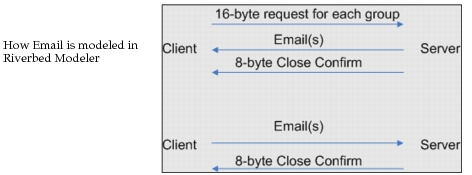
The following figure shows how Email is modeled in Riverbed Modeler.
Figure 22: Email Application Message Exchange
Some of the important email attributes are listed in the following table.
Table 5: Email Application Model Attributes
| Attribute | Description |
|---|---|
| Send Interarrival Time (seconds) | Time between e-mails sent from the client to the server. |
| Send Group Size | Number of e-mail messages grouped before transmission. |
| Receive Interarrival Time (seconds) | Time between e-mails received from the server at the client. |
| Receive Group Size | Number of e-mail messages grouped before reception. |
| E-Mail Size (bytes) | Average size of an e-mail message. |
| Symbolic Server Name | Symbolic name of the server to which the client connects. For more information, see Edit Destination Preferences. |
| Type of service | Quality-of-service parameter for assigning priority to this application's traffic. |
| RSVP Parameters | RSVP parameters for making bandwidth reservations. |
| Back-End Custom Application | Points standard application to custom application, allowing complex modeling of web applications, web caching, email, etc. Note: You must configure the custom application first, before pointing a standard application to it in this manner. |
Example: Server-Based Email Application
When a client sends an email, the email is stored on the server. The client polls the server on a regular basis, and receives e-mail destined to it. You can model this architecture easily by configuring the email Standard Application Model, which provides a Send Interarrival Time attribute and a Receive Interarrival Time attribute.
Note that the interarrival time, which is the time between successive messages, is the inverse of the rate. Inter-arrival times are configurable on an individual basis for each client. Send and receive inter-arrival times are independent. This means that a client can be a frequent sender of messages but an infrequent recipient.
Model Limitations
The send rate is independent of the receive rate. Also, if TCP is used as the transport protocol, there is only one TCP connection open from the client to the server. Messages are sent and received through this single TCP connection.
Using Measurements for Email Configuration
You can use the following measurements to configure the Email application.
- Use a protocol analyzer to determine the protocols supporting e-mail.
- To obtain the send interarrival time and the receive interarrival time, place a protocol analyzer on a segment shared by the client, configure the analyzer's filters to capture e-mail traffic exclusively, and monitor the e-mail exchange between the client and the server.
- The total bytes transferred from the server to the client (and vice-versa) are obtained.
- The average e-mail size = (total number of bytes)/(number of e-mails exchanged).
Note: The number of e-mail messages exchanged can be obtained by requesting the user to quantify e-mails sent/received when determining the send and receive rates.
Remote Login in Application Modeling
A Remote Login application models a remote login scenario. Users login to different machines, interact with the operating systems of the remote hosts. The commands they enter and the feedback they receive generate traffic on the network. TCP is the default transport protocol. The following figure shows how remote login is modeled in Riverbed Modeler.
Figure 23: Remote Login Application Message Exchange
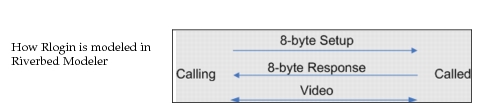
Some of the important Remote Login attributes are listed in the following table.
Table 6: Remote Login Application Model Attributes
| Attribute | Description |
|---|---|
| Inter-Command Time (seconds) | Time between commands issued within a remote login session. |
| Terminal Traffic (bytes/command) | Average amount of data transferred per command. |
| Host Traffic (bytes/command) | Average amount of data returned in response to a command. |
| Symbolic Server Name | Symbolic name of the server to be contacted. For more information, see Edit Destination Preferences. |
| Type of Service | Quality-of-service parameter for assigning priority to this application's traffic. |
| RSVP Parameters | RSVP parameters for making bandwidth reservations. |
| Back-End Custom Application | Points standard application to custom application, allowing complex modeling of web applications, web caching, email, etc. Note: You must configure the custom application first, before pointing a standard application to it in this manner. |
Model Limitations
Traffic within each login session (modeled as an independent TCP connection) is represented by the host traffic and terminal traffic attributes. Host traffic is defined as the traffic being received at the client. Terminal traffic is defined as the traffic being sent by the client.
Video Conferencing in Application Modeling
A video conferencing application lets users transfer streaming video frames across the network. UDP is the default transport protocol used for video conferencing. The following figure shows how video conferencing is modeled in Riverbed Modeler.
Figure 24: Video Application Message Exchange

Some of the important video conferencing attributes are listed in the following table.
Table 7: Video Application Model Attributes
| Attribute | Description |
|---|---|
| Frame Interarrival Time Information > | |
| Incoming Stream Interarrival Time (seconds) | Time between frames generated within a video conferencing session from the destination. |
| Outgoing Stream Interarrival Time (seconds) | Time between frames generated within a video conferencing session from the source. |
| Frame Size Information | |
| Incoming Stream Frame size (bytes) | Average size of an incoming video frame. |
| Outgoing Stream Frame size (bytes) | Average size of an outgoing video frame. |
| Symbolic Destination Name | Symbolic name of the destination to which the client connects. For more information, see Edit Destination Preferences. |
| Type of service | Quality-of-service parameter for assigning priority to this application's traffic. |
| RSVP Parameters | RSVP parameters for making bandwidth reservations. |
Model Limitations
If TCP is used as the transport protocol (not the default), each conference opens up an independent TCP connection.
Video Streaming in Application Modeling
With the video streaming application support in Riverbed Modeler, you can capture the video traffic produced by a given video streaming software (for example, VLC) into a file, and then use the file in Riverbed Modeler to simulate the same traffic in a scenario. The following figure shows how video streaming is modeled.
Figure 25: Video Streaming Message Exchange

Some of the important video streaming attributes are listed in the following table.
Table 8: Video Streaming Model Attributes
| Attribute | Description |
|---|---|
| Video File Name | Name of the GDF file containing the traffic capture. Inside the file, the first line specifies the size of the packets, and the remaining lines specify the packet inter-arrival times in microseconds. |
| Symbolic Server Name | Symbolic name of the server sending the video streaming packets. |
| Type of service | Quality-of-service parameter for assigning priority to this application's traffic. |
| RSVP Parameters | RSVP parameters for making bandwidth reservations. |
The following procedure describes how to capture video streaming traffic from an application, using VLC as an example.
Procedure 6: Capturing Video Streaming Traffic
-
Prepare to capture the video streaming traffic. 1.1 Choose Protocols > Applications > Capture Video Streaming Packets. Result: The following dialog box appears.
**Figure 26: Capture Video Streaming Packets Dialog Box** 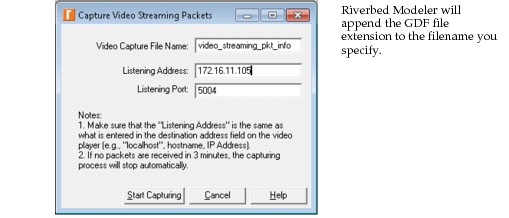1.2 Specify a filename to which to write the packets in the Video Capture File Name field. 1.3 Specify the Listening Address, which is the IP address or hostname of the system running Riverbed Modeler. 1.4 Specify a port on which the video streaming application is communicating in the Listening Port field. 1.5 Click the Start Capturing button when you are ready to listen for traffic on the specified port. 1.6 The video capture file will be stored in the primary directory (that is, the first directory listed) in your model directories (mod_dirs) preference. The file should be kept either in the primary model directory or in the same directory as the scenario that uses the file resides; otherwise, the application model will not be able to find the file during simulation. For more information about configuring and using model directories, see "mod_dirs" on page 48. 1.7 Go to the video streaming application and start sending traffic.
Note: Always start the capture before you start sending the packet stream so that no packets are missed.
-
Send traffic from the video streaming application.
Note: These steps are based on the use of VLC. If you use another program, field names and order may be different. 2.1 From the video streaming application, specify the following: - Video streaming protocol
  **Note:** RTP / MPEG Transport Stream is supported
- IP address of the destination machine (i.e., the machine running Riverbed Modeler)
- Destination port (which is specified in Modeler as the “Listening UDP Port” (see Figure 26, above)
- Time-to-live. This is required if the video streaming application is on a different machine than Riverbed Modeler. Increase the number to at least the number of hops between the source and destination addresses.
- (optional) Transcoding scheme (can be used to model different video codecs)
2.2 Click Stream when you are ready to start sending packets.
-
To stop capturing traffic, either stop the transmission of the video stream in the video streaming application or cancel the Capture Video Streaming Packets process in Riverbed Modeler. Otherwise, capturing will stop automatically three minutes after the end of the video.
End of Procedure 6
Note: A video capture file (“video_streaming.gdf”) is shipped with Riverbed Modeler as part of the “Application Configuration Example” project, in the “standard_applications” scenario. You may examine the contents of this example file and study the example project scenario to see how video streaming is modeled.
Collecting Statistics for the Video Streaming Application
Note the following statistics that are available for the Video Streaming application.
- Global Statistics > Video Streaming—Use global statistics to see traffic for all video streaming servers and receivers in the scenario
- Node Statistics > Client Video Streaming—Use these statistics to see the packet delay, delay variation, and traffic received per client.
- Node Statistics > Server Video Streaming—Use these statistics to see the traffic sent per video streaming server.
Database in Application Modeling
Database operations are divided into two categories: (1) a database entry, and (2) a database query. A database entry results in a fixed amount of data being written into the database. A database query results in the client issuing a query, and the server responding with some data. The default transport protocol for the database application is TCP.
The following figure shows how database transactions are modeled in Riverbed Modeler.
Figure 27: Database in Application Message Exchange
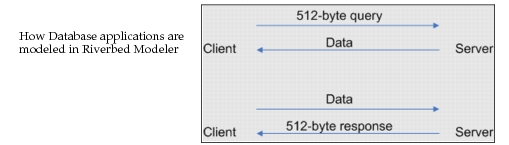
Some of the important database attributes are listed in the following table.
Table 9: Database Application Model Attributes
| Attribute | Description |
|---|---|
| Transaction Mix (Queries/Total Transactions) | Ratio of queries to the total number of transactions (queries + updates). |
| Transaction Interarrival Time (seconds) | Time between transactions. |
| Transaction Size (bytes) | Average size of an entry or a response to a query. |
| Symbolic Server Name | Symbolic name of the server the client contacts. For more information, see Edit Destination Preferences. |
| Type of Service | Quality-of-service parameter for assigning priority to this application's traffic. |
| RSVP Parameters | RSVP parameters for making bandwidth reservations. |
| Back-End Custom Application | Points standard application to custom application, allowing complex modeling of web applications, web caching, email, etc. Note: You must configure the custom application first, before pointing a standard application to it in this manner. |
Model Limitations
Requests within a transaction run independently of responses. The second request can be initiated before the first one completes.
There are two types of transactions in the standard database application: an entry/response transaction and a query/response transaction. In the entry/response transaction, the size of the entry is determined by the Transaction Size attribute and the size of the response is fixed at 512 bytes. For the query/response transaction, the query size is fixed at 512 bytes and the response size is determined by the Transaction Size attribute.
HTTP in Application Modeling
The HTTP application models Web browsing. The user downloads a page from a remote server. The page contains text and graphic information, and sometimes video. These page elements are collectively referred to as “inline objects”. TCP is the default transport protocol for HTTP. Each HTTP page request may result in opening multiple TCP connections for transferring the contents of the inline objects embedded in the page. The number of concurrent TCP sessions is determined by the application configuration.
The following figure shows the requests and objects returned in an HTTP transaction. An HTTP request is sent for each inline object. The size of the request packet is determined by the setting of the HTTP attribute.
Figure 28: HTTP Application Modeling
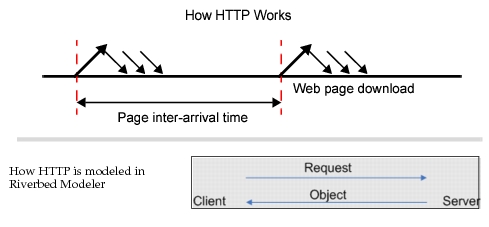
A video object contained in a web page may be
- downloaded automatically in its entirety, along with other inline objects,
- streamed (downloaded) upon the viewer’s request, after a random delay, in its entirety and played upon the start of the download, or
- streamed as live video upon viewer's request, after a random delay
In the model, the characteristics of the inline objects that comprise the web pages are set using the attribute “Page Properties” (described in Table 10), which has these sub-attributes.
- Automatically Loaded Page Objects—Specifies properties for all of the objects in the page that are automatically loaded, which includes automatically loaded videos (such as advertisements). Therefore, this attribute group specifies settings for videos described by case 1, above.
- Streamed Video Properties—Specifies properties for video that does not automatically load when a user opens the page. The video type can be “Live” (like web-TV, as in case 3 above) or “On Demand” (like playing a movie from an online archive, as in case 2 above).
Some of the important HTTP application attributes are listed in the following table.
Table 10: HTTP Application Model Attributes
| Attribute | Description |
|---|---|
| HTTP Specification > | |
| HTTP Version | The name of the supported HTTP version, 1.0 versus 1.1. |
| Max Connections | Maximum number of simultaneous TCP connections that HTTP can spawn. |
| Max Idle Period (seconds) | Maximum idle time after which a connection is torn down. |
| Number of Pipelined Requests | The number of HTTP requests that can be buffered together in a single application message. This attribute is only used for HTTP version 1.1. |
| Request Size | Specifies the size, in bytes, of a single requested object. |
| Page Interarrival Time (seconds) | Time between subsequent pages that a user browses. |
| Page Properties > | |
| Automatically Loaded Page Objects > | |
| Object size (bytes/object) | Average size of an object. The first row in the table defines the page itself. All other rows define object on the page. The value for this field is a probability distribution or a choice of pre-defined object sizes for images or videos contained in a page. |
| Number of Objects (objects/page) | Number of inline objects contained in a page. |
| Location | The symbolic name of the server on which the object is located. For more information, see Edit Destination Preferences. |
| Streamed Video Properties > | |
| Video Existence Probability | Probability that a video object is contained in the page. A page can have at most one streamed video. Predefined special values are “All Pages Include a Video” or “No Video”. |
| Play Start Time Offset | The time difference, in seconds, between the time the download of the page was started and the time that the user clicked “Play” to start the video |
| Video Type | Specifies attributes for video that does not pre-load when a user opens the page. The video type can be “Live” (like web-TV) or “On Demand” (like playing a movie from an online archive). - For “Live” video, the generated traffic is calculated based on the value of “Frame Size” and the value of “Frame Inter-arrival Time” distributions for the specified duration of the video. - For “On Demand”, the HTTP server sends back a file sized equal to the mean frame size (“Frame Size”) times the video duration (“Video Length”) divided by the mean frame interarrival time (“Frame Inter-arrival Time”) Note: For “On Demand”, you may not set the duration of the video to “Until Page Closed”. |
| Video Length | Defines the duration of the video - For Video Type “Live”, this attribute specifies for how long the live video will be viewed. A live video will be assumed to be finished when the page is closed, regardless of the length specified with this attribute. Note: For live videos, you can use the special value “Until Page Closed”. - For Video Type “On Demand”, the value of this attribute is used while computing the sizes of the video objects. |
| Server Selection > | |
| Initial Repeat Probability | Probability that a user would request the next page from the same server. |
| Pages Per Server | Number of pages accessed consecutively on the same server. |
| RSVP Parameters | RSVP parameters for making bandwidth reservations. |
| Type of Service | Quality-of-service parameter for assigning priority to this application traffic. |
Using Measurements for Configuration
The above attributes require measurement of user behavior. For example, to configure the page interarrival time, a typical user's browsing activity should be monitored. A corporate firewall may be a good source of information about average page downloads and the number of bytes transferred. There are many applications that monitor Web activity and provide summary statistics on corporate Internet usage.
Typically, the number of inline objects reflects the amount of graphical elements on a page.
Example: Intranet Application
An IS department has deployed an intranet application that lets employees use services such as the company directory, and marketing information. Each employee has a browser installed on her desktop. A central web server serves the intranet site. The web-browsing application is two-tier with the browser issuing requests to the web server and the server returning pages, text or images.
The HTTP application model will represent the above architecture appropriately because it allows you to do the following:
- Select the average number of pages downloaded and the average number of objects per page
- Choose the average page size and the number of servers accessed to download various objects on the page
The number of TCP connections that can be opened simultaneously by the browser can be specified.
Mobile User Applications in Application Modeling
A Mobile User traffic profile, based on the technical report TR 36.822 (published by 3GPP), is available to let you model a variety of mobile user applications popular on cell phones and tablets. This traffic profile represents a typical mobile device user running applications that perform interactive content pull, instant messaging, Internet gaming, and device background tasks.
This predefined Mobile User traffic profile is shown in the figure below. You can use this profile as a starting point to create your own characterization of the mobile users in your network model.
Figure 29: Mobile User Profiles
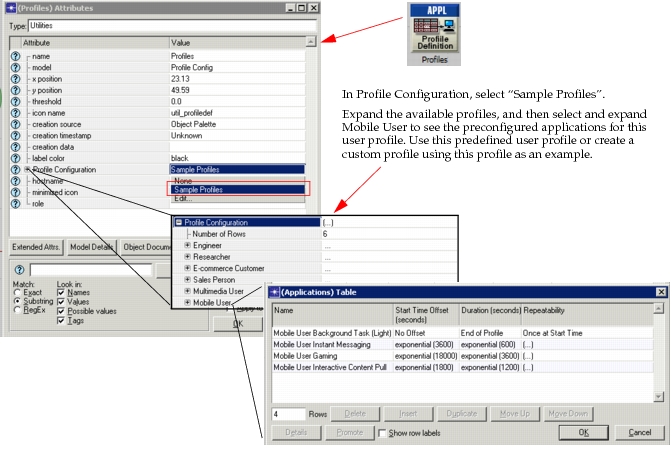
The applications that are part of the predefined traffic profile are configured in the Applications configuration node. To see the predefined applications, choose “Default” in the Application Definition utility node, as shown below. The mobile user application definitions, which are generated using the custom application model, will be part of that list that comprises the default application definitions.
Figure 30: Mobile User Applications
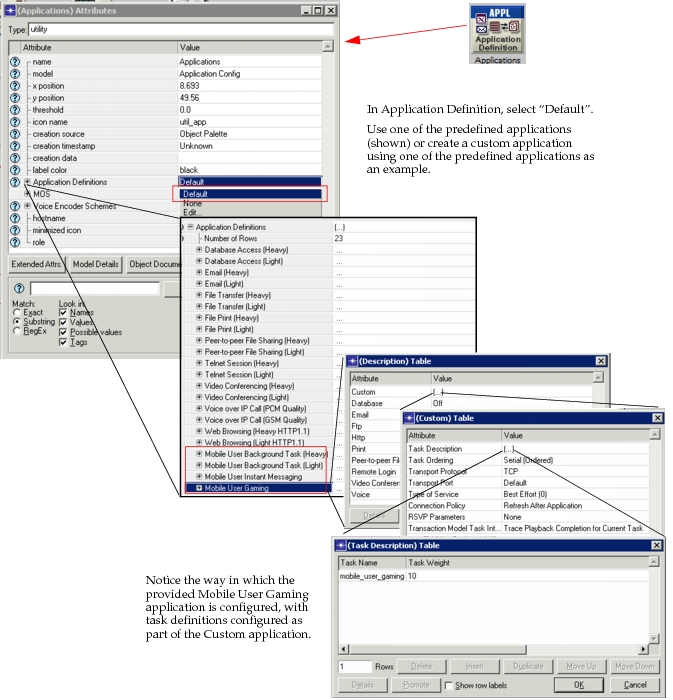
The tasks that are used in the default mobile user application definitions are specified in the Task Definition utility node.
Figure 31: Mobile User Tasks
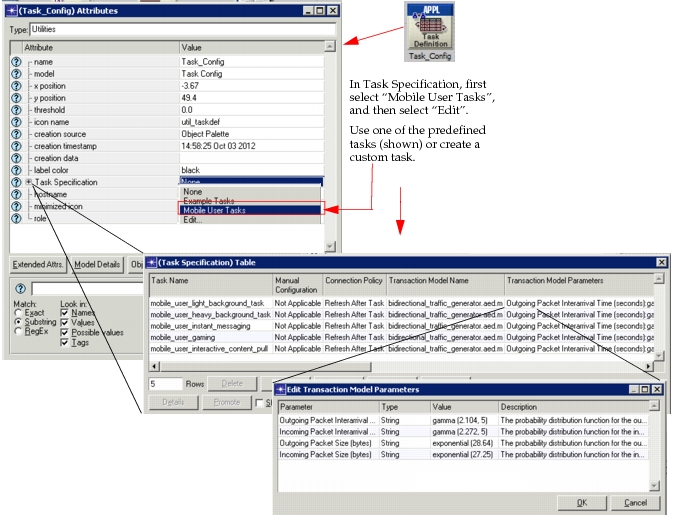
As we can see from the figure above, all the mobile user tasks are based on a simple Transaction model called bidirectional_traffic_generator. This model generates packets in both directions (client -> server, server -> client) based on the following input parameters: Outgoing Packet Inter-arrival Time, Incoming Packet Inter-arrival Time, Outgoing Packet Size, and Incoming Packet Size.
These parameters are different for each of the mobile user tasks, and their values are based on actual values collected in real networks in various field studies, as reported in 3GPP TR 36.822. In particular, for each parameter of each task, one representative curve was selected from the plots presented in 3GPP TR 36.822, a probability distribution function (PDF) that describes the curve was derived and set as the value of the Transaction model parameter. Since the traffic in both directions is generated using statistical models, these tasks do not follow a request-response concept.
You can customize the values for these tasks either directly or by duplicating the task with a new name, and then modifying the new task.
Collecting Statistics for Mobile User Applications
Note the following in regard to selecting and collecting statistics for Mobile User applications.
- If you want to collect statistics for each Mobile User Application separately, choose the statistics under “Transaction Analyzer Model” group.
- The “Transaction Analyzer Model > Task Response Time” statistic is not applicable, as discussed above, so it is not collected.
Several example projects contain mobile user applications. For example, the WLAN project, included with Riverbed Modeler, contains a pre-configured scenario (“WLAN_backbone_config_ex”) that demonstrates a simple configuration to enhance your understanding of the deployment of mobile user applications in a network.
Note: Example projects can be found in the following directory: <reldir>\models\std\example_networks.
Note: To learn more about defining custom applications, including creating or editing profiles like the one provided for Mobile User applications, please see Custom Application.
Print in Application Modeling
A print application allows the user to initiate print jobs. TCP is the default transport protocol used for this application. Each print job creates a new TCP connection with the printer, as shown below. A close confirm message completes the transaction.
Figure 32: Print Application Message Exchange

Some important print application attributes are listed in the following table.
Table 11: Print Application Model Attributes
| Attribute | Description |
|---|---|
| Print Interarrival Time (seconds) | Time between print jobs issued by the user. |
| File Size (bytes) | Average size of the file sent for printing. |
| Symbolic Printer Name | Symbolic name of the printer. For more information, see Edit Destination Preferences. |
| Type of Service | Quality-of-service parameter for assigning priority to this application's traffic. |
Voice in Application Modeling
A voice application enables two clients to establish a virtual channel over which they can communicate using digitally encoded voice signals. UDP is the default transport protocol used for this application. The voice data arrives in spurts that are followed by a silence period. Encoding schemes can be specified for the voice-to-packet translation.
Internally, the voice packets are sent over real-time protocol (RTP) streams. No special configuration is needed for RT, as RTP does not send explicit packets. By default there is no signaling in Voice; however, it can be set to H323 or SIP. See “Signaling” in Table 12.
Some important voice application attributes are listed in the following table.
Table 12: Voice Application Model Attributes
| Attribute | Description |
|---|---|
| Silence Length (sec) | Silence length for the incoming and outgoing calls along with the associated distributions. |
| Talk Spurt Length (sec) | Length of a talk spurt for the incoming and outgoing calls along with the associated distributions. |
| Symbolic Destination Name | Symbolic destination name of the client. For more information, see Edit Destination Preferences. |
| Encoder Scheme¹ | Encoding scheme in effect at the client. |
| Voice Frames per Packet | Number of voice frames that can be sent in a single packet. |
| Type of Service | Quality-of-service parameter for assigning priority to this application's traffic. |
| RSVP Parameters | RSVP parameters for making bandwidth reservations. |
| Traffic Mix | Proportion of traffic that should be modeled analytically instead of discretely. Higher amounts of analytic traffic decrease simulation run times but may limit the statistics that can be collected. Setting this attribute to all background has the same effect as configuring this traffic as an IP traffic flow. |
| Signaling | Specifies the method used for establishing and tearing down a voice call. Can be H.323 or SIP. |
| Compression Delay (seconds) | Specifies the delay in compressing a voice packet. |
| Decompression Delay (seconds) | Specifies the delay in decompressing a voice packet. |
Note 1: Encoder schemes are managed through the top-level attribute “Voice Encoder Schemes”.
To set the parameters for the voice encoding you want to use, add encoding schemes in the Voice Encoder Schemes table.
Model Limitations
The following is a list of important notes on this model:
- A voice call is established from one client to another, no server is modeled for voice conversations.
- The parameters for both the incoming and outgoing directions of the voice call are configured on the client.
- The silence length refers to the pause between talk spurts, the source client may stop talking when the destination is talking.