Stopping the License Server
This section describes the methods for stopping a license server.
WARNING: Do not stop the License Server while any licensed application is running, unless you will bring the license server back up within 15 minutes. For best system behavior, ask users to stop using the software or revoke all in-use licenses with the License Manager before stopping the License Server.
Stopping the License Server from the License Manager GUI
The following procedure describes the preferred way for stopping the License Server if you have access to the License Manager GUI. You can also use one of the alternate methods given for specific OS platforms.
Procedure 25: Stopping the License Server from the License Manager GUI
- Run the License Manager (as in Starting the License Manager GUI).
- In the License Manager treeview, select the license file of the server you intend to stop. Verify that no licenses are in use. If you are using loanable licensing, note the following points (not applicable to AppInternals, Transaction Analyzer, and NetCollector):
- If any licenses are checked out, you can forcibly revoke them by choosing Tools > Forcibly Return Loaned-out License in the License Manager. To do so, select and revoke those licenses. The user receives a warning message and a short grace period, allowing time to save files and exit the application. If the user does not exit, the application will quit.
- You can choose not to revoke any checked-out licenses if you will bring the license server back up within a few minutes.
- Click the Stop License Server button.
Stopping the License Server from Windows (Alternate Methods)
In addition to the methods already described, you can stop the License Manager service, as shown in the following procedures.
Procedure 26: Stopping the License Server on Windows (Manually)
- Start the Windows Task Manager application (right-click in the taskbar and choose Start Task Manager).
- Locate and select the
op_license_serverprocess on the Processes tabbed page. - Click the End Process button.
The following procedure should be used only when other methods fail to stop the license server and only for license servers that are not serving licenses to AppInternals. For cases in which you cannot stop a license server that is serving licenses to those products, please contact Riverbed Technical Support for assistance.
WARNING: Do not use Procedure 27 on AppInternals.
Procedure 27: Stopping the License Server on Windows (Riverbed analysis software only)
-
Invoke the License Manager program from the command line in the stop server mode:
op_license_util -license_server_kill -license_server <server> \
    -license_port <port>
For information about
op_license_util, see the Program Descriptions chapter of your product documentation.
Stopping the License Server on Linux (Alternate Methods)
The following procedure describes an alternate way to stop the license server on Linux.
WARNING: Do not use Procedure 28 on AppInternals or NetCollector.
Procedure 28: Stopping the License Server on Linux (Alternate Method)
Warning: Use this procedure only when other methods do not work.
-
Determine the process id (pid) of
op_license_serverby logging into the process' host and using thepscommand. -
Execute the kill command from the command line:
kill <pid>
Updating the System Date on a License Server
You might need to update the system date on a license server because the server's date is not the current date. This can occur even if the computer running the license server is set to the current date.
Note: Resetting the date requires that you contact technical support via either the Internet, e-mail, or phone/fax.
The Update System Date button in the License Manager GUI, shown in the following figure, lets you reset the license server's date, shown in the System Date field as listed in Table 3, to the current date.
Figure 31: Update System Date on License Server
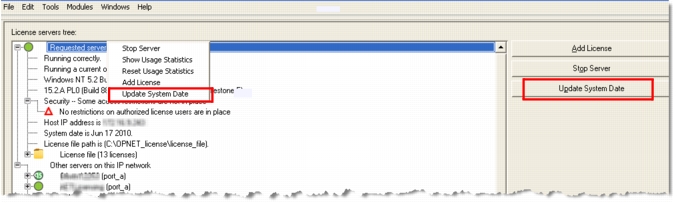
You can also right-click on the server and select "Update System Date" from the pop-up menu, as shown.