License Server Operations within License Manager GUI
There are several ways to start op_license_server, the process that is commonly referred to as the license server; however it is typically started by the host operating system during system startup. Methods for starting the process manually are described in this section.
WARNING: You cannot manage a version 15.0 (or higher) license server from a pre-15.0 license manager or from the license server included with AppInternals or Transaction Trace Analyzer (as these products use a pre-15.0 version of the license server). Version 15.0 (or higher) license servers can only be managed from 15.0 (or higher) license managers.
When a license server is selected in the license manager treeview, you can perform the following license server operations. You must have administrative privileges on the license server to make changes.
- Starting the License Server from the License Manager GUI
- Right-Click License Server Operations
- License Server Operations (Buttons)
Note: If you installed Riverbed analysis software in standalone licensing mode, it will obtain licenses on its own. There is no need to start the license server in this case. Standalone licensing is not a typical use case and is not available for AppInternals or NetCollector.
Starting the License Server from the License Manager GUI
The procedures in this section describe how to start a local or remote license server from the License Manager GUI. Use the following procedure to start a local license server.
Procedure 7: Starting a Local License Server from the License Manager GUI
- Run the License Manager (as in Starting the License Manager GUI).
- Select the License Server for your computer in the License Manager treeview. (It will have a red dot in front of its name, indicating that it is not running).
- Click the Start Server button.
Procedure 8: Starting a Remote License Server from the License Manager GUI
- Run the License Manager (as in Starting the License Manager GUI).
- Select the License Server in the License Manager treeview under "Other servers on this IP network."
- Click the Start Server button.
Right-Click License Server Operations
Right-click on a license server that is in a stopped condition to use these menu options, as shown in Figure 6:
- Start Server (See Starting the License Server from the License Manager GUI)
- Show Usage Statistics—Shows brief usage statistics for the selected license server. See also "License Server Usage Reports" on page 75 for more ways to obtain information about the usage of the license server.
- Reset Usage Statistics—Sets the license server usage statistics back to zero.
- Set as Default Server (See Set as Default Server (Button))
Figure 6: Right-Click Server Operations
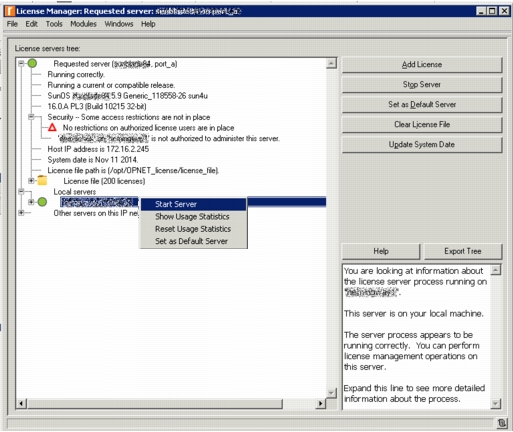
Right-click on a license server that is in a started condition to use these menu options, as shown in Figure 7:
- Stop Server (See Stopping the License Server from the License Manager GUI)
- Add License (See Add License from License Manager GUI)
- Update System Date (See Updating the System Date on a License Server)
Figure 7: Right-Click Server Operations
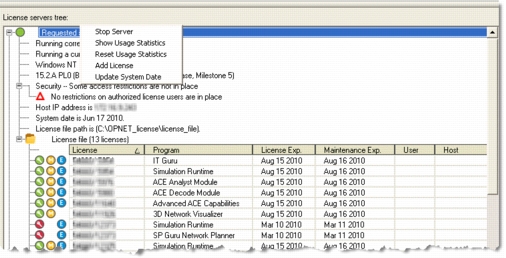
License Server Operations (Buttons)
When a license server is selected in the License Manager treeview, additional buttons appear on the right side of the GUI.
Figure 8: License Server Actions
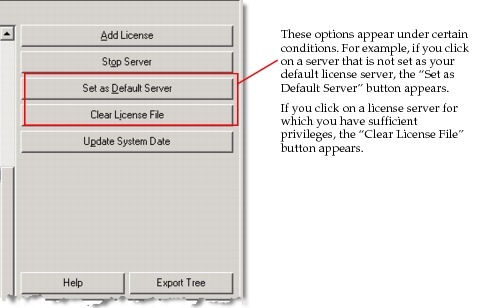
Start Server (Button)
This button starts the selected server, allowing it to issue licenses and perform other license server functions. You can also right-click on the server in the treeview and select "Start Server" from the pop-up menu. If the selected license server is already running, this button is not visible.
Note: This button is active only when the selected server is your own (local) machine. To determine if a machine is local, type
hostnamein a shell window. See Procedure 7 for details.
Stop Server (Button)
This button stops the selected server. You can also right-click on the server in the treeview and select "Stop Server" from the pop-up menu. If the selected license server is already stopped, this button is not visible.
Set as Default Server (Button)
When a license server is selected in the treeview, this button lets you set your user preferences so that the selected server is your default server. This server will be the requested server the next time you start Riverbed analysis software, and the values of the license_server and license_port preferences will correspond to this server. You can also right-click on a server other than the server you are currently using, and select "Set as Default Server" from the pop-up menu.
Create License File (Button)
This button appears only if there is no license file on the computer where the license server is running. When you click this button, a new license file is created. It will not have any licenses in it. Use the methods described in Add License from License Manager GUI to add licenses. The Create License File button is not commonly used.