License Server Reporting
The license server can track license usage statistics and produce statistical reports upon request. When tracking is enabled on the license server, you can generate reports from the license manager console, using two commands, from any client. Either command lets you specify a number of days on which to report.
fldb_stats—Produces a usage report for the license server.license_stats—Produces a usage report for individual licenses.
The report displays on the screen, and a time-stamped .csv copy of the file is placed in the local <user_home>\op_admin\tmp directory.
Enable License Tracking
Use one of the following procedures, depending on your platform, to enable license tracking.
Procedure 49: Enable License Tracking (Windows)
-
Navigate to Windows Services.
-
Right-click on the OPNET License Server service, and select Properties.
-
Click the Stop button on the General tab under Service Status.
-
Type
-license_usage_tracking_enable -license_usage_tracking_history_days <number of days>in the start parameters box.Note: If you do not use the
-license_usage_tracking_history_days <number of days>parameter, tracking is automatically enabled for a 30 day history. -
Click the Start button, and click OK to exit Properties.
Note: If you stop and restart the License Server from the License Manager, tracking is disabled.
Procedure 50: Enable License Tracking (Linux)
-
Modify the auto-boot scripts to include “-license_usage_tracking_enable”. The entire command will appear as follows:
<bindir>/op_license_server -license_port <port_name> -license_usage_tracking_enableTracking information is retained for 30 days, by default. To modify this period, append the following when using the command shown above:
-license_usage_tracking_history_days <number_of_days> -
Save the changes to the auto-boot script.
-
Stop the license server, using the procedures described in "Stopping the License Server from the License Manager GUI" on page 45 or "Stopping the License Server from the Command Line" on page 54.
-
Run the auto-boot script to restart the license server with the new changes.
Obtaining License Server Statistics
Once license tracking is enabled, you can generate statistical reports about license usage. Use one of the following procedures, depending on your platform, to generate a report.
License Server Usage Reports
A license server usage report provides license file statistics, including license ID (license number, contract number and program name), total time in use, average checkout time, number of checkouts, number of unique users who accessed the file, and user IDs of those who accessed the file.
Procedure 51: Generate License Usage Reports per Server (Windows)
-
Choose Start > All Programs > <application_name> 18.6 > Riverbed Console 18.6, to open a console window.
Note: You can generate the reports from any client machine that has access to the license server.
-
Type
op_license_util -license_server <license_server_name>.Result: A license server prompt displays.
-
Type
fldb_statsto print a usage report for the license server. -
Enter the number of days for which you wish to report.
-
Obtain a .csv copy of the report from the local
<user_home>\op_admin\tmpdirectory.Note: The naming convention of the file is
license_usage_report_MM-DD-YYYY_HH:MM:SS.
Procedure 52: Generate License Usage Reports per Server (Linux)
-
Open a shell.
Note: You can generate the reports from any client machine that has access to the license server.
-
Type
op_license_util -license_server <license_server_name>.Result: A license server prompt displays.
-
Type
fldb_statsto print a usage report for the license server. -
Enter the number of days for which you wish to report.
-
Obtain a .csv copy of the report from your
<user_home>/op_admin/tmpdirectory.Note: The naming convention of the file is
license_usage_report_MM-DD-YYYY_HH:MM:SS.
License File Usage Reports
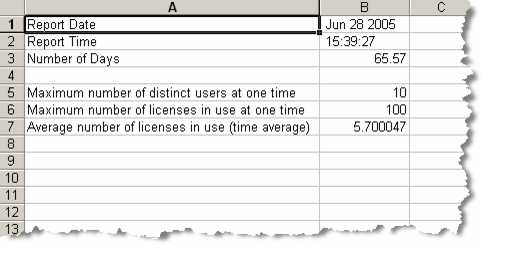
A license file usage report provides license server statistics, including maximum number of concurrent users, maximum number of concurrent licenses in use, and average number of concurrent licenses in use. The following figure shows an example of the .csv file that is produced.
Figure 40: License File Usage Report
Procedure 53: Generate License Usage Reports per License File (Windows)
-
Choose Start > All Programs > <application_name> 18.6 > Riverbed Console 18.6, to open a console window.
Note: You can generate the reports from any client machine that has access to the license server.
-
Type
op_license_util -license_server <license_server_name>.Result: A license server prompt displays.
-
Type
license_statsto print a usage report for the license server.Result: The report displays and scrolls on the screen.
-
Enter the number of days for which you wish to report.
-
Obtain a .csv copy of the report from your
\op_admin\tmpdirectory.Note: The naming convention of the file is
license_file_usage_report_MM-DD-YYYY_HH:MM:SS.
Procedure 54: Generate License Usage Reports per License File (Linux)
-
Open a shell.
Note: You can generate the reports from any client machine that has access to the license server.
-
Type
op_license_util -license_server <license_server_name>.Result: A license server prompt displays.
-
Type
license_statsto print a usage report for the license server.Result: The report displays and scrolls on the screen.
-
Enter the number of days for which you wish to report.
-
Obtain a .csv copy of the report from your
<user_home>/op_admin/tmpdirectory.Note: The naming convention of the file is
license_file_usage_report_MM-DD-YYYY_HH:MM:SS.