停止许可服务器(Stopping the License Server)
本节介绍停止许可服务器的各种方法。
警告: 不要在任何受许可的应用程序正在运行时停止 License Server(许可服务器),除非你将在 15 分钟内重新启动该许可服务器。为了获得最佳系统行为,在停止 License Server 之前,请要求用户停止使用该软件,或使用许可管理器撤销所有正在使用的许可。
从许可管理器 GUI 停止许可服务器(Stopping the License Server from the License Manager GUI)
以下过程描述了在你能够访问许可管理器 GUI 时停止 License Server 的首选方式。你也可以使用为特定操作系统平台提供的替代方法之一。
步骤 25:从许可管理器 GUI 停止许可服务器(Stopping the License Server from the License Manager GUI)
- 运行许可管理器(参见启动许可管理器 GUI)。
- 在许可管理器的树视图中,选中你要停止的服务器的许可文件。确认没有许可正在使用。如果你使用的是可借出许可(loanable licensing),请注意以下几点(不适用于 AppInternals、Transaction Analyzer 和 NetCollector):
- 如果有任何许可已被签出,你可以在许可管理器中选择 Tools > Forcibly Return Loaned-out License(工具 > 强制归还已借出的许可)来强制撤销它们。为此,请选中并撤销这些许可。用户会收到一条警告消息和一个短暂的宽限期,以便有时间保存文件并退出应用程序。如果用户未退出,该应用程序将被终止。
- 如果你将在几分钟内重新启动许可服务器,你可以选择不撤销任何已签出的许可。
- 单击 Stop License Server(停止许可服务器)按钮。
从 Windows 停止许可服务器(替代方法)(Stopping the License Server from Windows (Alternate Methods))
除了上述方法之外,你还可以按照以下过程停止 License Manager(许可管理器)服务。
步骤 26:在 Windows 上停止许可服务器(手动方式)(Stopping the License Server on Windows (Manually))
- 启动 Windows 任务管理器应用程序(右键单击任务栏并选择 Start Task Manager(启动任务管理器))。
- 在 Processes(进程)选项卡页面上找到并选中
op_license_server进程。 - 单击 End Process(结束进程)按钮。
以下过程仅应在其他方法无法停止许可服务器时使用,并且仅适用于未向 AppInternals 提供许可的许可服务器。对于无法停止正在为这些产品提供许可的许可服务器的情况,请联系 Riverbed 技术支持寻求帮助。
警告: 不要在 AppInternals 上使用步骤 27。
步骤 27:在 Windows 上停止许可服务器(仅限 Riverbed 分析软件)(Stopping the License Server on Windows (Riverbed analysis software only))
-
从命令行以停止服务器模式调用许可管理器程序:
op_license_util -license_server_kill -license_server <server> \
    -license_port <port>
有关
op_license_util的信息,请参见产品文档中的 Program Descriptions(程序描述)章节。
在 Linux 上停止许可服务器(替代方法)(Stopping the License Server on Linux (Alternate Methods))
以下过程描述了在 Linux 上停止许可服务器的另一种方式。
警告: 不要在 AppInternals 或 NetCollector 上使用步骤 28。
步骤 28:在 Linux 上停止许可服务器(替代方法)(Stopping the License Server on Linux (Alternate Method))
警告: 仅在其他方法无效时才使用此过程。
-
登录到该进程的主机并使用
ps命令来确定op_license_server的进程 id(pid)。 -
从命令行执行 kill 命令:
kill <pid>
更新许可服务器上的系统日期(Updating the System Date on a License Server)
你可能需要更新许可服务器上的系统日期,因为该服务器的日期不是当前日期。即使运行许可服务器的计算机已设置为当前日期,这种情况也可能发生。
注意: 重置日期要求你通过 Internet、电子邮件或电话/传真联系技术支持。
许可管理器 GUI 中的 Update System Date(更新系统日期)按钮(如下图所示)允许你将许可服务器的日期(如表 3中 System Date(系统日期)字段所示)重置为当前日期。
图 31:更新许可服务器上的系统日期(Update System Date on License Server)
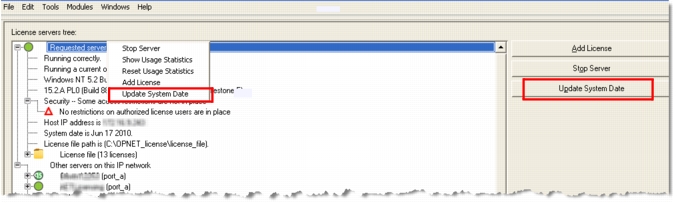
你也可以右键单击该服务器,并从弹出菜单中选择 "Update System Date"(更新系统日期),如图所示。