License File Operations with the License Manager GUI
The contents of the license file are displayed when you expand the license file folder under a selected server. You can right-click on a license file (when it is expanded to show the individual licenses) and sort the licenses for that server by license number, product type, status, or user.
Note: License file operations require you to contact Technical Support by phone at +1-240-497-1200 or through the web at https://support.riverbed.com.
Figure 9: Example License File
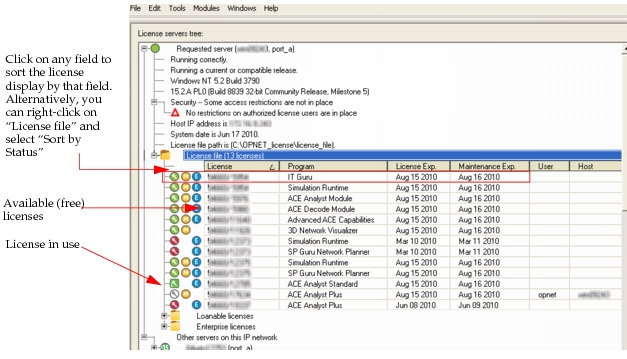
Table 7: License File Fields
| Column | Description |
|---|---|
| License | Contains the license number |
| Program | The program enabled by this license. |
| License Exp. | The expiration date of the license |
| Maintenance Exp. | The expiration of maintenance on the license |
| User | The name of the user who has the license checked out |
| Host | The name of the host system using the license |
| Time in Use | The amount of time the license has been in use |
| Category | Specifies whether this license is a Product or Module license |
You can restrict who has access to the following operations by creating an admin_auth file. If you do not create such a file, any user has access to these operations from any machine. See "Restricting License Server Administration" on page 78 for details. License file operations are described in the remainder of this section.
Revoke License (Button)
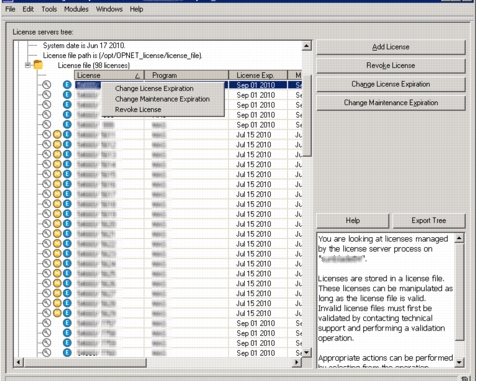
The Revoke License button immediately revokes a loanable license in use. The user of the license receives a warning and has a brief amount of time to save files and exit the application.
Note: This function applies to loanable licenses only. Some applications do not support loanable licensing. Loanable licensing is not supported in releases 18.0 and higher.
Figure 10: Revoke License from Pop-Up Menu
Change Maintenance Expiration (Button)
The Change Maintenance Expiration button lets you set a new maintenance expiration date based on information from Riverbed Technical Support or Sales. You can change the maintenance expiration date from the pop-up menu by right-clicking on the license. The maintenance expiration date determines:
- The time period for which you have access to technical support.
- The release of an application you can run. For example, suppose you have installed the newest version of Riverbed analysis software, which has a release date later than the maintenance expiration of a particular license. That license will not run the new release, though it will run earlier versions of Riverbed analysis software. Licenses with a later maintenance expiration can run the new release.
You can find detailed instructions on changing the maintenance expiration date on the Riverbed Technical Support website.
Change License Expiration (Button)
This button appears only if you select a permit that has an expiration. You can also right-click on a license and change its expiration.
Note: You cannot perform this function on a permanent permit, which is a special kind of permit that does not have an expiration date.
Note: You can move a license from one license server to another. To do this you must first deregister the license from one license server, then add the license to the target license server.
Deregister License (Button)
This operation deregisters a single license. The Deregister License button appears when you select a license that is not in use and for which you have administrative privileges. This choice also appears on the pop-up menu when you right-click on a license file, if no licenses in the file are in use. Note that you can only deregister a license a certain number of times each year, as specified in your agreements with Riverbed Technologies, Inc. See also Deregistering versus Clearing a License File.
Clear License File (Button)
This operation deregisters all licenses from the license file in a single operation. This button appears only if no licenses in the file are in use. The choice also appears on the pop-up menu when you right-click on a license file, if no licenses in the file are in use. You should contact Technical Support by e-mail, phone, or fax before performing this operation. See also Deregistering versus Clearing a License File.
Register New License (Tools Menu)
The Register New License function works in the same way as the Add License button.
Validate License File (Button)
This button only appears in rare circumstances in which a license file has become invalid. An invalid license file cannot be used to issue licenses.