Extracting a Point Feature as a Prop (Adding a SpeedTree)
In the tutorial “Adding Feature Data to a GDB Terrain“ on page 504, we explain how to add a point feature to a GDB terrain and add the terrain as a feature layer. In this tutorial, we extract the point feature and map it to a SpeedTree model. This tutorial assumes that you have completed the companion tutorial. Once the GDB file is added as a feature layer, you can extract the feature as a prop and map it to a model.
Procedure 211: Extracting a Feature as a Prop
-
Load the LittlePond terrain.
-
Choose Settings > Terrain. The Terrain Settings dialog box opens.
-
Select the Add Props page.
-
Click the Add icon (
 ) next to the list of Feature Layers.
-
Select
myLittlePondFeatures.gdb. -
In the Build Rule group box, click the Add icon (
). The Build Field/Value Pair dialog box opens. -
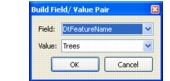
In the Field list, select DtFeatureName. The Value should be automatically set to Trees (Figure 229).
Figure 229: Build Field/Value Pair dialog box
-
Click OK.
-
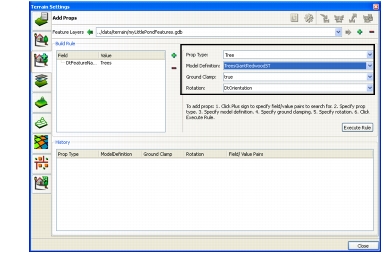
In the Prop Type list, select Tree.
-
In the Model Definition list, select the type of tree that you want to add, such as TreesGiantRedwoodSt (Figure 230).
Figure 230: Full build rule specified
-
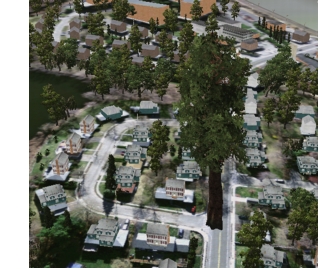
Click Execute Rule. The tree is added to the scene where the point feature was located in the GDB file (Figure 231).
Figure 231: New tree in Little Pond