Displaying Remote Graphics
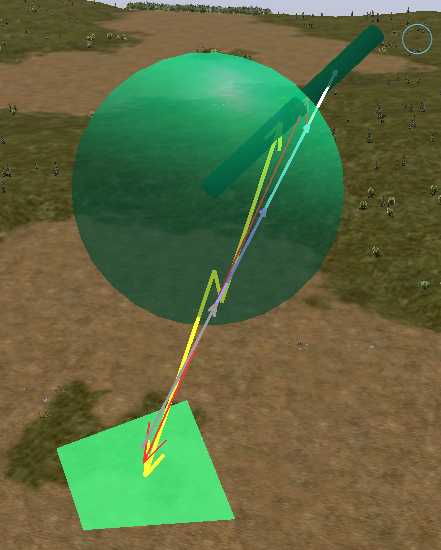
3D Network Visualizer can display graphics sent from other applications using the Ovis API (Figure 88).
Figure 88: Remote graphics
Procedure 105: Enabling or disabling the display of remote graphics
-
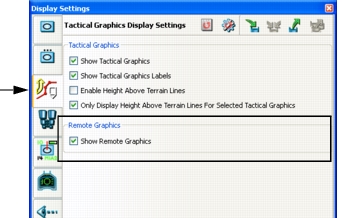
Choose Settings > Display. The Display Settings dialog box opens.
-
Select the Tactical Graphics Display Settings page (Figure 87).
Figure 89: Tactical Graphics Display Settings page
-
Select or clear the Show Remote Graphics check box.
Note: You can also enable and disable remote graphics by choosing Settings > Remote Graphics or by clicking the Remote Graphics icon (
 ) on the Display Settings Toolbar.
Viewing a List of Remote Graphics
Remote graphics can be organized into sets. There is no fixed organization. Labeling of sets is entirely at the discretion of the programmer who develops the application that generates the graphics. The Remote Graphics Panel displays remote graphics in a hierarchy by set.
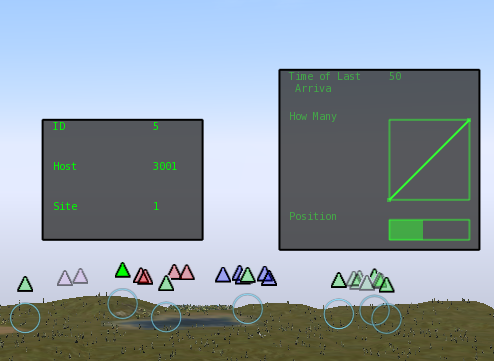
The 3D Network Visualizer Ovis API lets developers send data about objects as attribute:value pairs, for example Speed:30 KM. The attributes are organized by type using attribute group templates. You can enable and disable the display of attribute information by group and by individual attribute. Figure 90 illustrates the attributes for the Entity and Packet attribute group templates displayed in Figure 91.
Figure 90: Remote graphics attribute group display
Procedure 106: Viewing a list of remote graphics
-
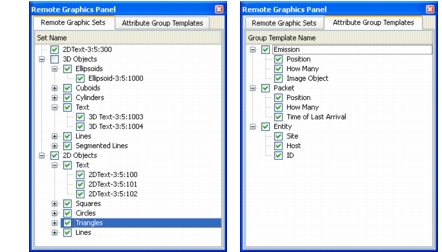
Choose View > Remote Graphics Panel. The Remote Graphics Panel is displayed (Figure 91). The Remote Graphics Sets tab lists remote graphics by set.
Figure 91: Remote Graphics Panel
-
To hide or display a remote graphic set or individual graphic, check or clear its checkbox in the Remote Graphics Sets list.
-
To view Attribute Group Templates, select the Attribute Group Templates tab. To see the attribute display, mouse over an object for which display data is available.