Managing Simulation Connections
3D Network Visualizer uses connectors to access the various types of input it requires. To connect to a simulation you connect an appropriate simulation connection, for example, an HLA 1.3 connection. The Simulation Connections dialog box lists connections and lets you manage them. You can:
- Add connections
- Configure connections
- Delete connections
- Connect to the network using a specific connection
- Disconnect a connection
- Specify a connection to use automatically at startup
- Enable or disable publishing of observers
- Enable or disable acceptance of view control messages
Displaying Connections
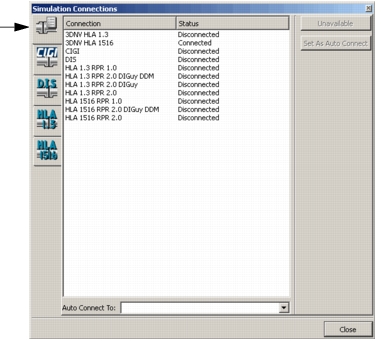
The Connection Status page on the Simulation Connections dialog box displays all of the configured connections and their connection status.
Procedure 227: Viewing the List of Connections
-
Choose Settings > Connection. The Simulation Connections dialog box opens.
-
Select the Connection Status page (Figure 248).
Figure 248: Simulation Connections dialog box, Connection Status page
Adding a Simulation Connection
You might want to edit the parameters for an existing connection and add a new connection with the updated parameters. In HLA, you might want to add a connection that supports a different FOM or FOM Mapper.
Procedure 228: Adding a Simulation Connection
-
Choose Settings > Connection. The Simulation Connections dialog box opens (Figure 248).
-
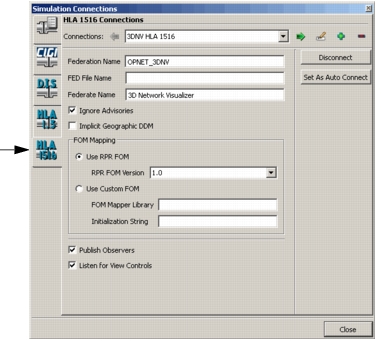
Select the page for the connection type you want to add (Figure 249).
Figure 249: Protocol-specific page
-
Click the Add icon (
 ) to the right of the Connections drop-down list. A new connection is added to the list. (To change the name of the connection, follow the procedure in Renaming a Simulation Connection.)
-
Set the connection parameters to the desired values. (For details about connection parameters, please see Configuring Connection Settings.)
-
Optionally, click Set As Auto Connect to have 3D Network Visualizer automatically connect using this connection when it starts up.
-
Click Close.
Renaming a Simulation Connection
Procedure 229: Renaming a Simulation Connection
- Choose Settings > Connection. The Simulation Connections dialog box opens (Figure 248).
- Select the page for the connection type that you want to rename.
- In the Connections drop-down list, select the connection that you want to rename.
- Click the Rename icon (
 ). The Rename Connection dialog box opens.
- Type a new name for the connection.
- Click OK.
Deleting a Simulation Connection
Procedure 230: Deleting a Simulation Connection
- Choose Settings > Connection. The Simulation Connections dialog box opens (Figure 248).
- Select the page for the connection type that you want to delete.
- In the Connections drop-down list, select the connection that you want to delete.
- Click the Delete icon (
 ). You are prompted to confirm the deletion.
- Click Yes.