Configuring the Logger for HLA
This section describes how to configure the Logger for HLA exercises. For details about configuring connection settings in the GUI, please see Editing a Connection.
Most of the HLA connection settings can be set using individual command-line options or by using the SetConnectionParameters command in the text interface.
The syntax for SetConnectionParameters for HLA 1.3 and HLA 1516 is:
SetConnectionParameters federateName federationName fedFile ignoreAdvisories fomVersion fomRevision fomMapper fomMapperData useEmptyFomMapper
For example:
SetConnectionParameters Logger VR-Link VR-Link.fed False 1.0 1 myFomMapper "myInitParameter1 myInitParameter2 …" False
When you use the SetConnectionParameters command, you must specify all of the arguments, whether you want to change them from the default values or not. For example, if you just want to change the name of the Logger federate, even though it is the first argument in the list, you still must enter a complete command as follows:
SetConnectionParameters myLogger VR-Link VR-Link.fed "" 1.0 1 "" "" ""
For details about commands and command syntax, please see Chapter 33 “Using Multi-Federate Logger for 3DNV Commands” on page 467.
Specifying the Name of the Logger Federate
By default, the Logger federate is named Logger.
To specify the federate name, use the -N command-line option or the SetConnectionParameters command (Table 10).
Table 10: Specifying the Logger federate
| Interface | Command |
|---|---|
| GUI | Connection dialog box: Federate Name attribute. |
| Command line | set OP_3DNV_LOGGER_EXTRA_ARGS = -N myLoggerop_3dlog_launcher_<hla_version>.exe |
| Text interface | Use the SetConnectionParameters command. |
lgrConfig.xml |
The federateName variable is in the default configuration file. |
Specifying the Federation Execution Name
By default, the Logger uses the federation execution name VR-Link.
Note: By default, the Logger assumes that the federation configuration file (FED, FDD) file has the same name as the federation execution, plus the appropriate extension. For details, please see Specifying a FED File.
To specify a federation execution name, use the -x command-line option or the SetConnectionParameters command (Table 11).
Table 11: Specifying the federation execution
| Interface | Command |
|---|---|
| GUI | Connection dialog box: Exercise Name attribute. |
| Command line | set OP_3DNV_LOGGER_EXTRA_ARGS = -x VR-Linkop_3dlog_launcher_<hla_version>.exe |
| Text interface | Use the SetConnectionParameters command. |
lgrConfig.xml |
The execName variable is in the default configuration file. |
Specifying a FED File
By default the Logger uses a FED file called VR-Link.fed. The Logger also accepts federation description files with the .fdd and .xml extensions. Riverbed products come with a FED (and XML) file for each version of the RPR FOM that they support.
To specify a FED file, use the -F command-line option or the SetConnectionParameters command (Table 12).
Table 12: Specifying the FED file
| Interface | Command |
|---|---|
| GUI | Connection dialog box: FED File Name attribute. |
| Command line | set OP_3DNV_LOGGER_EXTRA_ARGS = -F VR-Link20017-1.fedop_3dlog_launcher_<hla_version>.exe |
| Text interface | Use the SetConnectionParameters command. |
lgrConfig.xml |
The fedFileName variable is in the default configuration file. |
Specifying the RPR FOM Version
The Logger has built-in support for the RPR FOM. The default version is 1.0. You can specify a different RPR FOM version (0.5, 0.7, 0.8, 2.0006, 2.0014, or 2.0017). If you specify a RPR FOM version other than the default, you must also specify the correct FED file.
To specify the RPR FOM version, use the --rprFomVersion command-line option or the SetConnectionParameters command (Table 13).
Table 13: Specifying the RPR FOM version
| Interface | Command |
|---|---|
| GUI | Connection dialog box: Use RPR FOM option and RPR FOM Version attribute. |
| Command line | set OP_3DNV_LOGGER_EXTRA_ARGS = --rprFomVersion 2.0017 -F VR-Link20017-1.fedop_3dlog_launcher_<hla_version>.exe |
| Text interface | Use the SetConnectionParameters command. |
lgrConfig.xml |
The rprFomVersion variable is in the default configuration file. |
Specifying the RPR FOM Revision
If you use RPR FOM version 2, draft 17, you can specify a RPR FOM revision (1, 2, or 3). These revision numbers only apply to the RPR FOM 2.0017. The FED file can be the same for the different revisions; only the data format changes. Default: 1.
To specify the RPR FOM revision, use the --rprFomRevision command-line option or the SetConnectionParameters command (Table 14).
Table 14: Specifying the RPR FOM revision
| Interface | Command |
|---|---|
| GUI | Connection dialog box: Use RPR FOM option and RPR FOM Revision attribute. |
| Command line | set OP_3DNV_LOGGER_EXTRA_ARGS = --rprFomVersion 2.0017 --rprFomRevision 1 -F VR-Link20017-1.fedop_3dlog_launcher_<hla_version>.exe |
| Text interface | Use the SetConnectionParameters command. |
lgrConfig.xml |
The rprFomRevision variable is in the default configuration file. |
Ignoring Advisory Messages
To have the Logger ignore advisory messages, use the SetIgnoreAdvisories command (Table 15).
Table 15: Specifying the response to advisory messages
| Interface | Command |
|---|---|
| GUI | Connection dialog box: Select Ignore Advisories. |
| Command line | set OP_3DNV_LOGGER_EXTRA_ARGS = --ignoreAdvisories 1op_3dlog_launcher_<hla_version>.exe |
| Text interface | Use the SetConnectionParameters command, or use SetIgnoreAdvisories true. |
lgrConfig.xml |
The ignoreAdvisories variable is in the default configuration file. You can also add SetIgnoreAdvisories to the configuration file. |
Specifying a FOM Mapper
The Logger supports different FOMs using VR-Link FOM Mappers. The Logger chooses the FOM Mapper based on the following criteria:
- If a FOM mapper library is specified, it is used.
- If Use Empty FOM Mapper is specified, the empty FOM Mapper is used.
- If neither of the first two options is specified, a default RPR FOM FOM Mapper is used.
Note: The different versions of the RPR FOM that you can specify with the rprFomVersion parameter are actually designating one of several default FOM Mappers supplied with the Logger.
To specify a FOM Mapper, use the -f command-line option or the SetConnectionParameters command (Table 16).
Table 16: Specifying a FOM Mapper
| Interface | Command |
|---|---|
| GUI | Connection dialog box: Select Use Custom FOM and specify FOM Mapper Library and, optionally, Initialization String. Select Use Empty FOM Mapper if the FOM you are using is not a derivative of the RPR FOM and no appropriate FOM Mapper library is available. |
| Command line | set OP_3DNV_LOGGER_EXTRA_ARGS = -f myFomMapper.dllop_3dlog_launcher_<hla_version>.exeOR set OP_3DNV_LOGGER_EXTRA_ARGS = --useEmptyFomMapper 1op_3dlog_launcher_<hla_version>.exe |
| Text interface | Use the SetConnectionParameters command. |
lgrConfig.xml |
The fomMapperLib and useEmptyFomMapper variables are in the default configuration file. |
Specifying a FED File that is Appropriate for the FOM Mapper
Note: The -f option only tells the application which FOM Mapper to use. It does not ensure that you are using the correct FED file for the FOM Mapper. Make sure that you are using a FED file that is consistent with the FOM Mapper you have chosen.
By default the Logger uses a FED file called VR-Link.fed, but you can specify an alternate FED file using the -F option.
The following example instructs the application to use an alternative FOM Mapper and FED file:
set OP_3DNV_LOGGER_EXTRA_ARGS = -f myFomMapper -F myFedFile.fed
op_3dlog_launcher_<hla_version>.exe
Specifying FOM Mapper Initialization Data
Some FOM Mappers require initialization data.
To specify FOM Mapper initialization data, use the --fomMapperInitData command-line option or the SetConnectionParameters command (Table 17).
Table 17: Specifying FOM Mapper initialization data
| Interface | Command |
|---|---|
| GUI | Connection dialog box: Set Use FOM Mapper to True, specify a FOM Mapper File, and set the FOM Mapper Init Data attribute. |
| Command line | set OP_3DNV_LOGGER_EXTRA_ARGS = -f myFomMapper.dll --fomMapperInitData ABCop_3dlog_launcher_<hla_version>.exewhere ABC is passed to the FOM Mapper creator function in the shared library as an initialization parameter. |
| Text interface | Use the SetConnectionParameters command. |
lgrConfig.xml |
The fomMapperInitData variable is in the default configuration file. |
Configuring Time Management
The Logger supports time-constrained recording and time-regulating playback. To configure time management in the Logger, it must be enabled in your RTI. If time management is not enabled in the RTI, the configuration options are not available in the Preferences dialog box.
Procedure 140: Configuring Time Management in the GUI
-
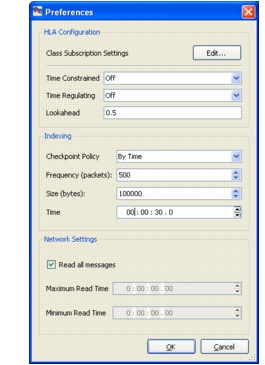
Choose Options > Preferences. The Preferences dialog box opens (Figure 124).
Figure 124: Preferences dialog box for HLA
-
To configure the Logger as a time-constrained federate, in the HLA Configuration group box, set the Time Constrained value to Recording.
-
To configure the Logger as a time-regulating federate, in the HLA Configuration group box, set the Time Regulating value to Playback.
-
Optionally, set the Lookahead value.
-
Click OK.
To specify time management from a command interface, use the SetTimeManagement command (Table 18).
Table 18: Specifying time management
| Interface | Command |
|---|---|
| GUI | See procedure in this section. |
| Command line | set OP_3DNV_LOGGER_EXTRA_ARGS = -r "SetTimeManagement true false false true 0.5"op_3dlog_launcher_<hla_version>.exe |
| Text interface | SetTimeManagement true false false true 0.5 |
lgrConfig.xml |
Add SetTimeManagement to the configuration file. |
Specifying the Logger Subscription List
By default the Logger subscribes to all classes in your FED file except RTIPrivate and any MOM object or interaction. However, you can specify the set of classes and interactions that the Logger subscribes to by listing them in a command or creating a subscription control list.
Creating a Subscription Control List
In the Logger GUI, you can specify a list of classes to subscribe to and you can save that list to a file.
Procedure 141: Creating a Subscription Control List in the GUI
-
Choose Options > Preferences. The Preferences dialog box opens (Figure 124).
-
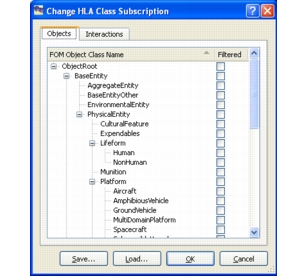
In the HLA Configuration group box, click Edit. The Change HLA Class Subscription dialog box opens (Figure 125). The dialog box has a tab that lists object classes and a tab that lists interaction classes. Classes that have a check mark next to their name are filtered out.
Figure 125: Change HLA Class Subscription dialog box
-
Edit the subscription list by checking the box in the Filtered column for classes that you want to filter out.
-
Click OK. The subscription list takes effect the next time you enter record mode.
To specify a subscription list in a command interface, use the SetSubscriptionLists command (Table 19).
Table 19: Specifying a subscription list
| Interface | Command |
|---|---|
| Command line | set OP_3DNV_LOGGER_EXTRA_ARGS = -r "SetSubscriptionLists \"ObjectRoot.BaseEntity.PhysicalEntity.Platform.Aircraft ObjectRoot.BaseEntity.PhysicalEntity.Radio InteractionRoot.WeaponFire\""op_3dlog_launcher_<hla_version>.exe |
| Text interface | SetSubscriptionLists "ObjectRoot.BaseEntity.PhysicalEntity.Platform.Aircraft ObjectRoot.BaseEntity.PhysicalEntity.Radio InteractionRoot.WeaponFire" |
lgrConfig.xml |
Add SetSubscriptionLists to the configuration file. For details about adding a string list to the configuration file, please see "Adding a String List to lgrConfig.xml" on page 401.Note— The SetSubscriptionLists command must come after the Connect command. |
Saving A Subscription List
Procedure 142: Saving a Subscription List in the GUI
- Edit a subscription list as described in Specifying the Logger Subscription List.
- In the Change HLA Class Subscription dialog box, click Save. The Save As dialog box opens.
- Enter a name for the subscription list and click Save. By default, subscription lists are saved in the appropriate
bindirectory with the extension.subx.
To save a subscription list in a command interface, use the SaveSubscriptionListFile command (Table 20).
Table 20: Saving a subscription list
| Interface | Command |
|---|---|
| Command line | set OP_3DNV_LOGGER_EXTRA_ARGS = -r "SaveSubscriptionListFile mySubList.subx"op_3dlog_launcher_<hla_version>.exe |
| Text interface | SaveSubscriptionListFile mySubList.subx |
Loading A Subscription List
Procedure 143: Loading a Subscription List in the GUI
- In the Change HLA Class Subscription dialog box, click Load. An Open dialog box opens.
- Select the subscription list file you want to load.
- Click Open.
- Click OK to apply the subscription list.
To load a subscription list in a command interface, use the LoadSubscriptionListFile command (Table 21).
Table 21: Loading a subscription list
| Interface | Command |
|---|---|
| Command line | set OP_3DNV_LOGGER_EXTRA_ARGS = -r "LoadSubscriptionListFile \"../config/mySubList.subx\""op_3dlog_launcher_<hla_version>.exe |
| Text interface | LoadSubscriptionListFile ../config/mySubList.subx |
lgrConfig.xml |
Add LoadSubscriptionListFile to the configuration file. |
Subscribing Passively to Objects and Interactions
The Logger can subscribe passively to objects and interactions. In passive mode, the Logger records the updates that other federates subscribe to. It does not subscribe to any specific objects or interactions. If you want to use passive subscription, you must specify it before you connect to an exercise.
To have the Logger subscribe passively, use the SetPassiveSubscription command (Table 22).
Table 22: Specifying passive subscription
| Interface | Command |
|---|---|
| Command line | set OP_3DNV_LOGGER_EXTRA_ARGS = -r "SetPassiveSubscription true"op_3dlog_launcher_<hla_version>.exe |
| Text interface | SetPassiveSubscription true |
lgrConfig.xml |
Add SetPassiveSubscription to the configuration file. |