Configuring the Exercise Connection
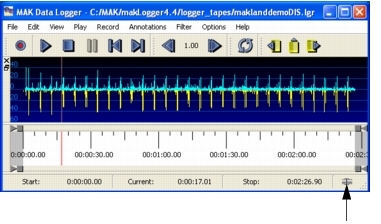
The Logger connects to exercises through an exercise connection. You can connect to and disconnect from an exercise. When you connect to an exercise you must specify the parameters for the protocol you are using. The connection status is displayed in the Logger status bar (Figure 122).
Figure 122: Connection status
Viewing Connection Properties
In the GUI, you can view the configuration of the current exercise connection for the Logger. When the Logger is connected to an exercise, the connection settings are read-only.
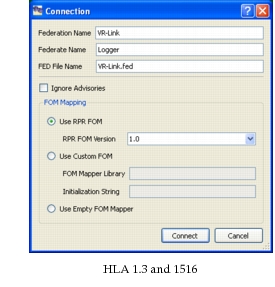
To view connection properties, choose File > Connection, or right-click the connection status icon. The Connection dialog box opens (Figure 123).
Editing a Connection
If you are not connected to an exercise, you can set connection properties and connect to the network. For descriptions of the various properties, please see Configuring the Logger for HLA.
Procedure 139: Editing a connection
Note: You cannot edit a connection while you are connected. To make a connection editable, disconnect from it.
-
Choose File > Connection. The Connection dialog box opens (Figure 123). It displays the current settings for the protocol you are using.
Figure 123: Connection dialog box for HLA
-
Change attribute values as desired.
-
Click Connect.