Defining and Using Radio Link Profiles
In the top-level attribute "Radio Link Profiles" of the PHY configuration utility, you can define global settings for the network. You can then use these settings for the entire network, apply a Radio Link Profile that you create to one or more nodes in the network, or specify to use local node settings.
The following procedure describes how to define Radio Link Profiles and apply them to individual nodes in the network.
Procedure 1: Defining a Radio Link Profile and Applying to a Node
-
In the PHY configuration utility node, define one or more new Radio Link Profiles.
1.1 Right-click on the PHY configuration utility node, and select Edit Attributes.
*Result:* The attributes editor opens. **Figure 8: Attributes Editor for PHY Configuration Utility Node** 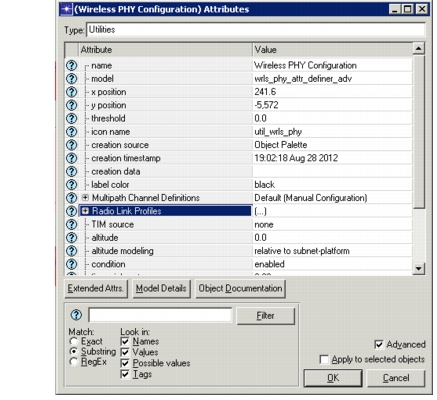1.2 Expand the Radio Link Profiles attribute.
1.3 Add a row for each new Radio Link Profile you want to create.
1.4 Provide a unique name to each Radio Link Profile.
**Figure 9: Radio Link Profile Table** 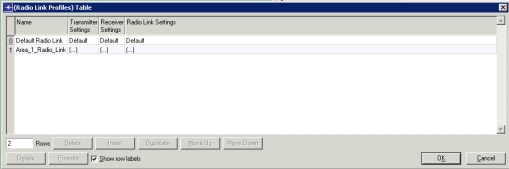1.5 Define the Transmitter and Receiver Settings, or leave as Default.
1.6 Expand the Radio Link Settings.
1.7 Configure Multipath and Pathloss settings, if desired, and click OK to save your changes. For more details, see descriptions of the attributes provided earlier in this section.
1.8 Click OK to save the Radio Link Profile(s) you created.
1.9 Click OK to save the changes to the PHY configuration utility node and close the attribute editor.
-
Apply a Radio Link Profile to a node.
2.1 Right-click on the node you want to configure, and select Edit Attributes.
*Result:* The attribute editor opens.2.2 Expand the PHY attribute and click on Radio Link Profile to see the available Radio Link Profiles.
**Figure 10: Radio Link Settings Table** 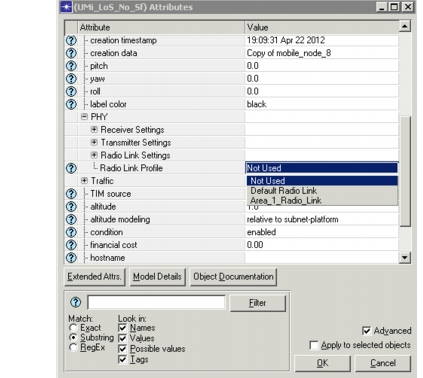2.3 Choose the Radio Link Profile you want to apply.
2.4 Click OK to save your changes and close the attribute editor.
End of Procedure 1