创建与编辑 schema
构成场景的元素带有用于定义它们的参数,例如模型文件名。某个特定场景元素的参数集合就是一个 schema。3D Network Visualizer 使用 schema 来校验元素定义。你可以创建、复制和删除 schema。对于任何 schema,你都可以添加和删除参数,并编辑参数值。
注: schema 的更改会自动保存。详细信息请参阅“Managing 3D Network Visualizer Settings“(第 126 页)。
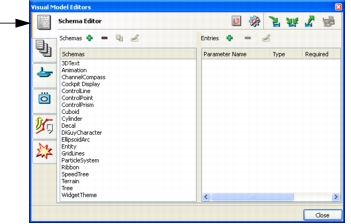
3D Network Visualizer 包含模型定义 schema。模型定义 schema 定义了可以在场景中显示的元素。3D Network Visualizer 提供的模型定义 schema 有:
- 3DText
- Animation
- Channel Compass
- Cockpit Display
- ControlLine
- ControlPoint
- ControlPrism
- Cuboid
- Cylinder
- Decal
- DiGuyCharacter
- EllipsoidArc
- Entity
- GridLines
- ParticleSystem
- Ribbon
- SpeedTree
- Terrain
- Tree
- WidgetTheme.
- Selection Visualizer.
创建 schema
过程 118:创建 schema
-
选择 Settings > Visual Model Editors。Visual Model Editors 对话框打开。
-
选择 Schema Editor 页面(图 106)。
图 106:Schema Editor 页面
-
单击 Schemas 标签旁的 Add 图标(
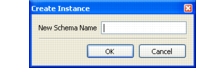
 )。Create Instance 对话框打开(图 107)。
图 107:Create Instance 对话框
-
为新 schema 输入名称。
-
单击 OK。
-
按照为 schema 添加参数所述添加参数。
删除 schema
注: 如果某个 schema 被模型定义使用,你就无法删除它。Delete Schema 图标将不可用。
过程 119:删除 schema
- 选择 Settings > Visual Model Editors。Visual Model Editors 对话框打开。
- 选择 Schema Editor 页面(图 106)。
- 在 Schemas 列表中,选择你要删除的 schema。
- 单击 Schemas 标签旁的 Delete 图标(
 )。系统会提示你确认删除。
- 单击 Yes。该 schema 从列表中被移除。
复制 schema
如果你想要一个作为现有 schema 变体的新 schema,复制现有 schema 再编辑它,通常比新建一个 schema 并添加全部参数更容易。
过程 120:复制 schema
- 选择 Settings > Visual Model Editors。Visual Model Editors 对话框打开。
- 选择 Schema Editor 页面(图 106)。
- 选择你要复制的 schema。
- 单击 Duplicate 图标(
 )。Duplicate Schema 对话框打开。
- 为复制出的 schema 版本输入名称。
- 单击 OK。
- 新 schema 被添加到列表中。
- 按照编辑 schema 参数所述编辑参数。
为 schema 添加参数
过程 121:为 schema 添加参数
- 选择 Settings > Visual Model Editors。Visual Model Editors 对话框打开。
- 选择 Schema Editor 页面(图 106)。
- 在 Schemas 列表中,选择你要为其添加参数的 schema。
- 单击 Entries 标签旁的 Add Parameter 图标(
 )。一个名为 “key” 的参数被添加到参数列表。
- 双击 “key” 进入编辑模式。
- 为该参数输入名称。
- 如果该参数有特定类型,就在 Type 列中编辑其值。
- 如果该参数是必需的,就在 Required 列中编辑其值。
- 可选地,添加一段描述。描述会在元素定义页面上提供上下文相关帮助。
从 schema 删除参数
注: 如果你从 schema 中删除一个参数,任何使用该 schema 的元素定义都可能变为无效。无效的元素定义会在定义列表中以红色显示。
过程 122:从 schema 删除参数
- 选择 Settings > Visual Model Editors。Visual Model Editors 对话框打开。
- 选择 Schema Editor 页面(图 106)。
- 在 Schemas 列表中,选择你要从中删除参数的 schema。
- 选择你要删除的参数。
- 单击 Entries 标签旁的 Delete 图标(
 )。
编辑 schema 参数
过程 123:为 schema 编辑参数
- 选择 Settings > Visual Model Editors。Visual Model Editors 对话框打开。
- 选择 Schema Editor 页面(图 106)。
- 在 Schemas 列表中,选择你要为其编辑参数的 schema。
- 单击你要编辑的参数属性。该属性变为可编辑。
- 输入新的属性值。