从命令行管理许可(Manage Licenses from the Command Line)
一旦你将许可添加到许可服务器,之后你可能需要执行某些操作。例如:
- 从命令行注销许可(Deregistering a License from the Command Line)
- 从命令行清除许可文件(Clearing a License File from the Command Line)
- 从命令行更改维护到期日(Change Maintenance Expiration from Command Line)
- 更改许可的到期日期(Changing the Expiration Date for a License)
从命令行注销许可(Deregistering a License from the Command Line)
通常在计算机即将被重新格式化或退役,或者你想将许可移动到另一个许可文件时,你会注销许可。
本节描述在使用命令行(浮动许可管理器)时如何注销许可。使用步骤 39 来注销一个或多个许可。
步骤 39:从命令行注销许可(Deregister Licenses from the Command Line)
-
从命令行打开浮动许可管理器:
- 对于 Riverbed 分析软件或 AppInternals,请使用步骤 29。
-
在
manager>提示符下,键入delete_permits并按 Enter(回车)。参见以下示例:manager> delete_permits Please provide the transaction code to Riverbed via the web: https://rpmapps.riverbed.com/cms/4dcgi/LICW4D_CL_Operations If you are unable to perform license registration over the web, contact Riverbed via: Phone: 1.888.782.3822 or +1.415.247.7381 Email: support@riverbed.com Transaction code> DFEB.072B.FF29.41C0.45EE.A9DF.035A.A033.94D4 After sending the transaction code to Technical Support, please do not exit the current session of op_license_util before receiving the approval code from Technical Support. Enter approval code. Approval code> -
在你的 Web 浏览器中,前往:https://rpmapps.riverbed.com/cms/4dcgi/LICW4D_CL_Operations
-
使用你的 Riverbed 支持用户名(Username)和密码(Password)登录。
-
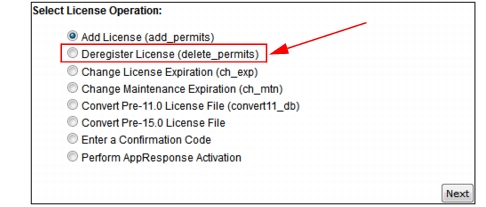
选择 "Deregister License (delete_permits)"(注销许可),然后单击 Next(下一步)。
图 34:注销许可——Browser 方法(Deregister License—Browser Method)
-
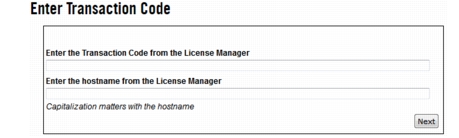
输入 Transaction Code(交易代码,来自步骤 2)和你的许可服务器的主机名。确保代码或主机名的前后没有多余的空格。单击 Next(下一步)。
图 35:输入交易代码/主机名(Enter Transaction Code/Hostname)
-
当出现 "Select Starting License"(选择起始许可)页面时,选择你要添加到计算机的最低许可 ID。如果只想添加一个许可,请选择该许可。
-
当出现 "Select Ending License"(选择结束许可)页面时,选择你要添加到计算机的最高许可 ID。如果只想添加一个许可,请选择该许可。确认页面随即出现。
-
当出现 "License Registration Confirmation"(许可注册确认)页面时,检查信息是否正确,然后单击 Get Approval Code(获取批准码)按钮。
结果: 显示 Approval Code(批准码)。
-
在浮动许可管理器中按提示输入 Approval Code(批准码),然后按 Enter(回车)。
-
要确认服务器已注销该许可,请使用许可管理器的
permit_info命令来显示你可用的许可。 -
键入
exit以退出浮动许可管理器,并关闭你的浏览器。
注销与清除许可文件的区别(Deregistering versus Clearing a License File)
你应该使用 "Deregister License"(注销许可)还是 "Clear License File"(清除许可文件)?这两个选项听起来非常相似,但每个都在不同的规模上执行相同的操作。
- 选项 1——注销所有许可 如果你想在一次操作中注销你的所有许可,请使用 Clear License File(参见从命令行清除许可文件(Clearing a License File from the Command Line))。这会一次性注销许可文件中的所有许可,无论其合同号范围如何。
- 选项 2——注销一个或多个选定的许可 如果你想注销某个选定的许可,请使用本节中描述的 Deregister License(注销许可)操作,并输入要从你的许可文件中移除的许可。
从命令行清除许可文件(Clearing a License File from the Command Line)
此操作会在一次操作中从许可文件注销所有许可。在执行此操作之前,你应始终通过电子邮件、电话或传真联系 Riverbed 技术支持。
在浮动许可管理器的命令行中,使用 clear_fl_db 命令来清除许可文件。
从命令行更改维护到期日(Change Maintenance Expiration from Command Line)
本节描述在使用命令行(浮动许可管理器)时如何更改许可的维护到期日期。
步骤 40:使用命令行更改许可维护到期日(Change Licensing Maintenance Expiration Using the Command Line)
-
从命令行打开浮动许可管理器:
- 对于 Riverbed 分析软件或 AppInternals,请使用步骤 29
-
在
manager>提示符下,键入ch_mtn并按 Enter(回车)。参见以下示例:manager> ch_mtn Please provide the transaction code to Riverbed via the web: https://rpmapps.riverbed.com/cms/4dcgi/LICW4D_CL_Operations If you are unable to perform license registration over the web, contact Riverbed via: Phone: 1.888.782.3822 Email: support@riverbed.com Transaction code> DFEB.072B.FF29.41C0.45EE.A9DF.035A.A033.94D4 After sending the transaction code to Technical Support, please do not exit the current session of op_license_util before receiving the approval code from Technical Support. Enter approval code. Approval code> -
在你的 Web 浏览器中,前往:https://rpmapps.riverbed.com/cms/4dcgi/LICW4D_CL_Operations
-
使用你的 Riverbed 支持用户名(Username)和密码(Password)登录。
-
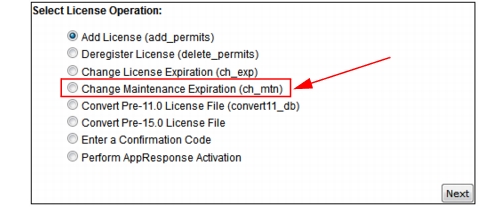
选择 "Change Maintenance Expiration (ch_mtn)"(更改维护到期日),然后单击 Next(下一步)。
图 36:更改维护到期日——Browser 方法(Change Maintenance Expiration—Browser Method)
-
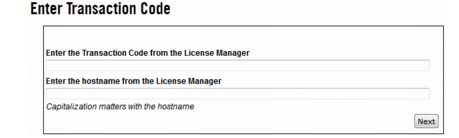
输入 Transaction Code(交易代码,来自步骤 2)和你的许可服务器的主机名。确保代码或主机名的前后没有多余的空格。单击 Next(下一步)。
图 37:输入交易代码/主机名(Enter Transaction Code/Hostname)
-
当出现 "Select Starting License"(选择起始许可)页面时,选择你要更新的最低许可 ID。如果只想更新一个许可,请选择该许可。
-
当出现 "Select Ending License"(选择结束许可)页面时,选择你要更新的最高许可 ID。如果只想更新一个许可,请选择该许可。
结果: 确认页面随即出现。
-
当出现 "License Registration Confirmation"(许可注册确认)页面时,检查信息是否正确,然后单击 Get Approval Code(获取批准码)按钮。
结果: 显示 Approval Code(批准码)。
-
在浮动许可管理器中按提示输入 Approval Code(批准码),然后按 Enter(回车)。
-
键入
exit以退出浮动许可管理器,并关闭你的浏览器。
更改许可的到期日期(Changing the Expiration Date for a License)
本节描述在使用命令行(浮动许可管理器)时如何更改许可的到期日期。
步骤 41:使用命令行更改许可到期日(Change License Expiration Using the Command Line)
-
从命令行打开浮动许可管理器:
- 对于 Riverbed 分析软件或 AppInternals,请使用步骤 29
-
在
manager>提示符下,键入ch_exp并按 Enter(回车)。参见以下示例:manager> ch_exp Please provide the transaction code to Riverbed via the web: https://rpmapps.riverbed.com/cms/4dcgi/LICW4D_CL_Operations If you are unable to perform license registration over the web, contact OPNET via: Phone: +1.415.247.7381 or +1.888.782.3822 Email: support@riverbed.com Transaction code> DFEB.072B.FF29.41C0.45EE.A9DF.035A.A033.94D4 After sending the transaction code to Technical Support, please do not exit the current session of op_license_util before receiving the approval code from Technical Support. Enter approval code. Approval code> -
在你的 Web 浏览器中,前往:https://rpmapps.riverbed.com/cms/4dcgi/LICW4D_CL_Operations
-
使用你的 Riverbed 支持用户名(Username)和密码(Password)登录。
-
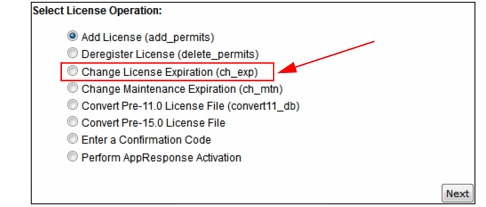
选择 "Change License Expiration (ch_exp)"(更改许可到期日),然后单击 Next(下一步)。
图 38:更改许可到期日——Browser 方法(Change License Expiration—Browser Method)
-
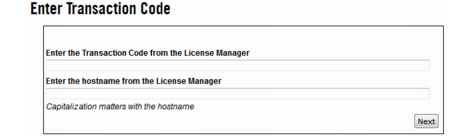
输入 Transaction Code(交易代码,来自步骤 2)和你的许可服务器的主机名。确保代码或主机名的前后没有多余的空格。单击 Next(下一步)。
图 39:输入交易代码/主机名(Enter Transaction Code/Hostname)
-
当出现 "Select Starting License"(选择起始许可)页面时,选择你要更改到期日期的最低许可 ID。如果只想更新一个许可,请选择该许可。
-
当出现 "Select Ending License"(选择结束许可)页面时,选择你要更改到期日期的最高许可 ID。如果只想更新一个许可,请选择该许可。
结果: 确认页面随即出现。
-
当出现 "License Registration Confirmation"(许可注册确认)页面时,检查信息是否正确,然后单击 Get Approval Code(获取批准码)按钮。
结果: 显示 Approval Code(批准码)。
-
在浮动许可管理器中按提示输入 Approval Code(批准码),然后按 Enter(回车)。
-
键入
exit以退出浮动许可管理器,并关闭你的浏览器。