Add Licenses
This section discusses the ways to add licenses to a license server. For any of these procedures, note the following:
- The Riverbed License Server must be running on the computer to which you want to add the license
- You must also have permission to add licenses to the license server in question (see "Restricting License Server Administration" on page 78)
Note: The procedure in this section requires you to communicate with Riverbed Technical Support.
Add Licenses from the Command Line
This section describes how to add licenses when using the floating license manager. Use the following procedure to add licenses.
Procedure 38: Add Licenses Using the Command Line
-
Open the floating license manager (
op_license_util) from the command line:- For Riverbed analysis software or AppInternals, use Procedure 29
-
At the
manager>prompt, enteradd_permitsand press Enter. See the following example:manager> add_permits Please provide the transaction code to Riverbed via the web: https://rpmapps.riverbed.com/cms/4dcgi/LICW4D_CL_Operations If you are unable to perform license registration over the web, contact Riverbed via: Phone: 1.888.782.3822 or +1.415.247.7381 Email: support@riverbed.com Transaction code> DFEB.072B.FF29.41C0.45EE.A9DF.035A.A033.94D4 After sending the transaction code to Technical Support, please do not exit the current session of op_license_util before receiving the approval code from Technical Support. Enter approval code. Approval code> -
In your web browser, go to: https://rpmapps.riverbed.com/cms/4dcgi/LICW4D_CL_Operations
-
Log in with your Riverbed support Username and Password.
-
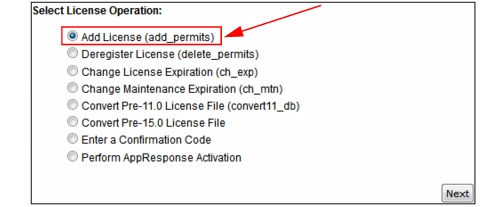
Select "Add License (add_permits)" and click Next.
Figure 32: Add License—Browser Method
-
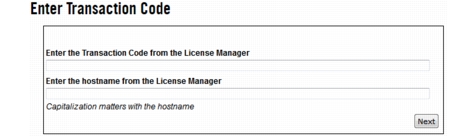
Enter the Transaction Code (from step 2) and the hostname of your license server. Make sure there are no extra spaces before or after the code or hostname. Click Next.
Figure 33: Enter Transaction Code/Hostname
-
When the "Select Starting License" page appears, select the lowest license ID that you want to add to your computer. If you want to add only one license, select that license.
-
When the "Select Ending License" page appears, select the highest license ID that you want to add to your computer. If you want to add only one license, select that license. The confirmation page appears.
-
When the "License Registration Confirmation" page appears, check that the information is correct, then click on the Get Approval Code button.
Result: The Approval Code appears.
-
Enter the Approval Code where prompted in the floating license manager and press Enter.
-
To confirm that the server added the license, use the license manager
permit_infocommand to display the license you just added. -
Type
exitto leave the floating license manager, and close your browser.