Use Cases for TCP Distributed Simulation
Two use cases in particular benefit from the use of oms_sar:
System-in-the-Loop (SITL)
System-in-the-Loop (SITL) provides an interface between a simulated network running in Riverbed Modeler and a physical network. Packets traveling between the simulated and real networks are translated between real and simulation formats. With SITL, physical hardware and a simulation can interact as a unified system.
Note: SITL is optional functionality for Riverbed solutions.
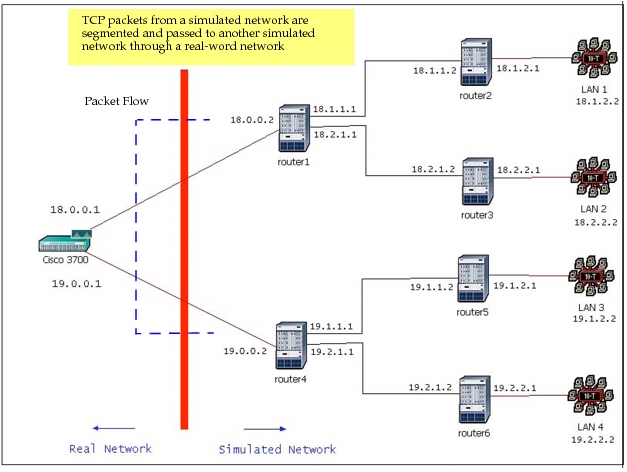
One possible configuration for SITL uses multiple gateways in the simulation to connect two simulated networks to external hardware, as shown in the following figure. Using this configuration, you can send simulated traffic from one part of a simulation through a real network (such as a physical router) and back to another part of the simulation. Such a configuration can be used either to test real hardware under different types of application loads or playback an application packet trace and study its dynamics when transmitted over real hardware. With the TCP enhancements to SAR, SITL would just need perform protocol header conversion on transmission and reception between networks (real or simulated).
Figure 1: SITL Use Case
High-Level Architecture (HLA)
The High-Level Architecture (HLA) functionality in Riverbed Modeler lets you include a simulation as one of the federates in an HLA federation, and thus to both affect—and be affected by—events in other federates.
Note: HLA is optional functionality for Riverbed solutions.
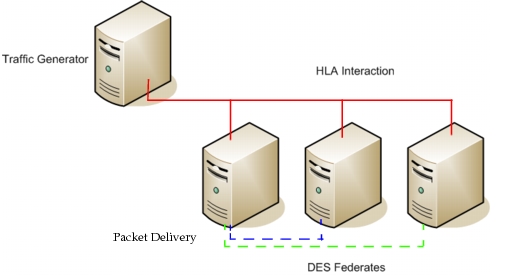
With the TCP enhancements to SAR, and with HLA translation code in place, TCP connections can be established between Riverbed Modeler federates to exchange traffic.
Figure 2: HLA Use Case
Workflow for TCP in Distributed Simulations
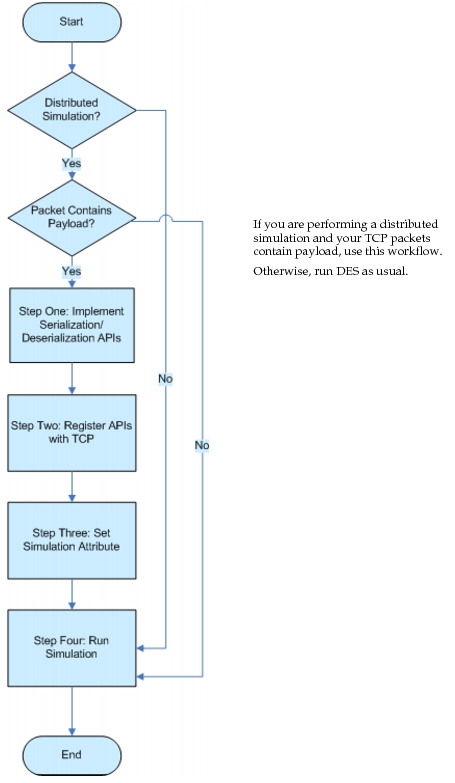
The workflow for sending and receiving TCP packets in distributed simulations is as follows:
Figure 3: Workflow for TCP in Distributed Simulations
Software Components: Using TCP in Distributed Simulations
Use the following software components in this workflow:
- Riverbed Modeler, and one of the following modules:
- (optional) High-Level Architecture (HLA)
- (optional) System-in-the-Loop (SITL)
Prerequisites: Using TCP in Distributed Simulations
This workflow requires experience with the following topics.
- Running a discrete event simulation
- (optional) Using HLA
- (optional) Using SITL
- Using APIs
Workflow Steps: Using TCP in Distributed Simulations
-
Step Two: (optional) Implement, Compile, and Register Callbacks
Note: This step is not necessary if the payload entering a simulation is already converted into bits by an external source.
Step One: Configure a Distributed Simulation
Using HLA or SITL, configure a distributed simulation as described in High-Level Architecture (HLA) or System-in-the-Loop (SITL). If necessary, refer to the HLA User Guide or the SITL User Guide.
Step Two: (optional) Implement, Compile, and Register Callbacks
If custom application payloads need to be exchanged, use this step to implement, compile, and register call-backs for serialization and deserialization of payload with the oms_sar API.
Serialization and Deserialization of Payload
TCP payload data needs to be converted to a string of characters and stored in the segmentation and reassembly buffers. These strings of characters, when transmitted as packet payload, are represented as bits on the wire.The payload must be serialized as it enters the buffer on the transmitting node and then deserialized at the receiving node when it is passed out of the buffer, as described in this section.
Note: You must register the serialization and deserialization callback functions.
Serialization
To serialize the payload, the callback function first creates a payload handle by specifying an approximate size for the buffer that temporarily holds the serialized contents of the payload. The callback then serializes the data by calling the appropriate API (based on the data type being serialized). When all the data has been serialized and stored in the temporary buffer, the callback function calls oms_sar_payload_serialized_bytes_get to get the serialized bytes, which is used to the fill in the buffer that is passed in to the callback.
Deserialization
To deserialize the payload, the deserialization callback creates a payload handle by passing in the string of bytes to be deserialized. Then the callback calls the APIs in the same sequence in which they were serialized to convert the string of bytes into data of the appropriate type. The callback then creates packets of the required type, fills in the data obtained by deserializing the payload, and returns a packet.
Note: When a client of the SAR package (TCP, for instance) requests data to be accessed or removed from the buffer, the amount of data requested must be a multiple of 8 bits. If it is not a multiple of 8, then the SAR package will create a segment whose bit count is the closest multiple of 8, but smaller than the requested size.
Sample Serialization/Deserialization Functions
The example below shows how to program the serialization and deserialization functions.
Compcode
tcp_sar_serialization_callback (Packet* packet, char **data_arr,
								OpT_Packet_Size *array_size)
	{
	OmsT_Payload_Handle *payload_handle_ptr = OPC_NIL;
	int					tos = 0, options = 0;
	double				ratio = 0.0;

	FIN (tcp_sar_serialization_callback);

	/*	Create the payload handle.	*/
	payload_handle_ptr = oms_sar_payload_serializer_handle_create (
		op_pk_total_size_get (packet));

	/*	Serialize the data from the packet.	*/

	/*	Get the data from the packets.	*/
	op_pk_nfd_get_int32 (packet, "Type of Service", &tos);
	op_pk_nfd_get_int32 (packet, "Options", &options);
	op_pk_nfd_get_dbl (packet, "Ratio", &ratio);

	/*	Store the serialized data in the buffer.	*/
	oms_sar_payload_int32_serialize (payload_handle_ptr, tos);
	oms_sar_payload_int32_serialize (payload_handle_ptr, options);
	oms_sar_payload_double_serialize (payload_handle_ptr, ratio);

	/*	Get the serialized data from the buffer.	*/
	oms_sar_payload_serialized_bytes_get (payload_handle_ptr, data_arr,
		array_size);

	FRET (OPC_COMPCODE_SUCCESS);
	}

Packet*
tcp_sar_deserialization_callback (char *data_arr, OpT_Int64 array_size,
								  OpT_Packet_Size *data_converted)
	{
	OmsT_Payload_Handle *payload_handle_ptr = OPC_NIL;
	int					tos = 0, options = 0;
	double				ratio = 0.0;
	Packet				*packet_ptr = OPC_NIL;

	FIN (tcp_sar_deserialization_callback);

	/*	Create the payload handle.	*/
	payload_handle_ptr = oms_sar_payload_deserializer_handle_create (
		data_arr, array_size);

	/*	Get the data from the payload.	*/
	oms_sar_payload_int32_deserialize (payload_handle_ptr, &tos);
	oms_sar_payload_int32_deserialize (payload_handle_ptr, &options);
	oms_sar_payload_double_deserialize (payload_handle_ptr, &ratio);

	/*	Create a packet of the required type and fill in the data.	*/
	packet_ptr = op_pk_create_fmt ("tcp_data_packet");
	if (packet_ptr)
		{
		op_pk_nfd_set_int32 (packet_ptr, "Type of Service", tos);
		op_pk_nfd_set_int32 (packet_ptr, "Options", options);
		op_pk_nfd_set_dbl (packet_ptr, "Ratio", ratio);
		}

	/*	Fill in the number of bytes of payload deserialized.	*/
	*data_converted = sizeof(int)*2 + sizeof(double);

	FRET (packet_ptr);
	}
Registering the Serialization/Deserialization Functions
A client of TCP must register the serialization and deserialization callbacks. The client must open TCP connections using the tcp_conn_open_with_options API. In the TcpT_Conn_Open_Options structure passed in, the client sets the serialization and deserialization callbacks.
Step Three: Set the Simulation Attribute
A new enumerated simulation attribute controls the use of the oms_sar package during distributed simulations: Support Distributed Simulations. The available values for this new attribute are as follows:
- Auto—(Default) Determines if the simulation is connecting to external sources (SITL, HLA, etc.). If so, the simulation will use the new package; otherwise, the simulation will use the existing op_sar package.
- Enable—Specifies the simulation should always use the new oms_sar package.
- Disable—Specifies the simulation should always use the existing op_sar package.
Set this attribute to “Enable” before proceeding to the next step.
Step Four: Run a Simulation
Now that you have configured the statistics you want to collect and mode in which you want to collect them, run the simulation.
Procedure 1: Running a Simulation
-
Select DES > Configure/Run Discrete Event Simulation.
-
Optionally, click on the Detailed… button to change to the detailed view.
-
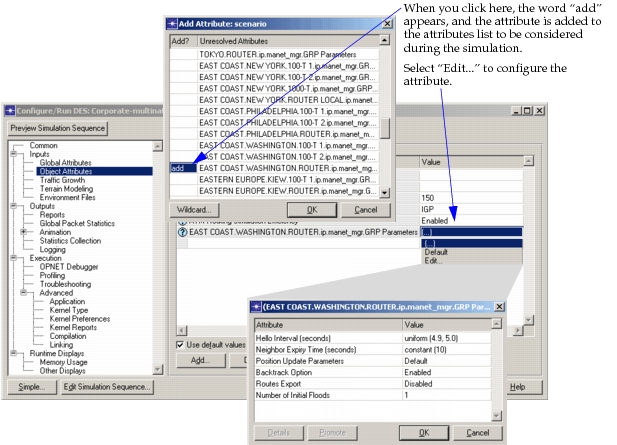
Optionally, access promoted attributes by clicking on Object Attributes in the treeview.
Figure 4: Access Promoted Attributes (Detailed View)
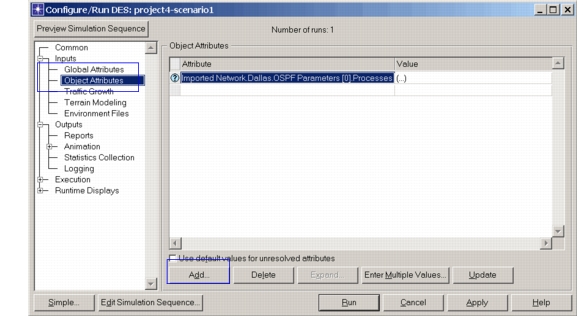
If the attribute you want to modify is not visible, click the Add button and add the attribute and values.
Figure 5: Attribute Parameters
-
Optionally, if you are troubleshooting, enable the debugger.
-
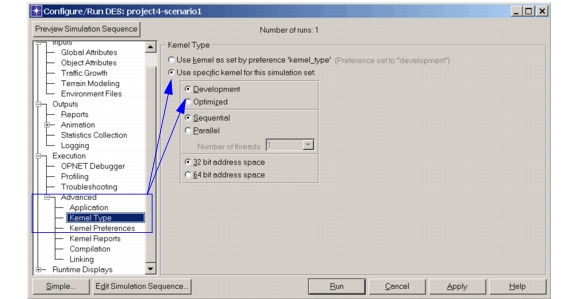
4.1 Select Advanced > Kernel Type, and set the kernel type to Development.
Figure 6: Set Kernel Type to Development (Detailed View)
-
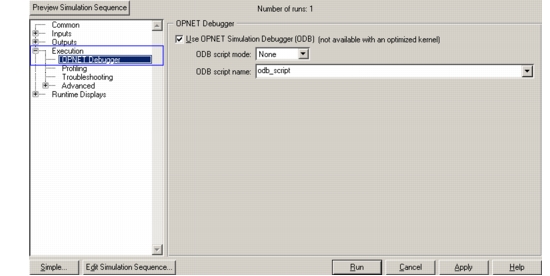
4.2 Select Execution > OPNET Debugger, as shown.
Figure 7: Enable OPNET Debugger (Detailed View)
-
-
Modify any values appropriately. Click the Run button when you are ready to execute the simulation.
-
When the simulation completes, right-click in the project workspace, and select “View Results” to see the DES results for the study.
Interpret and analyze the results of the simulation. Refer to “Understanding and Configuring Statistics Collection“ on page 1, step four, if necessary.